Accessible Solitaire Version 4.6 includes a new game called Grandfather’s Clock solitaire. As with most of the other games in the app, I’d never heard of Grandfather’s Clock solitaire before adding it, so if you spot something unexpected in the game rules listed below, please do let me know.
Important: Please note that on some devices it can take a long time to start or restart a Grandfather’s Clock game, sometimes at least ten seconds. Please be patient while the game is starting and do not attempt to start a different game while the Grandfather’s Clock game is being prepared. I hope in a later release to speed up the starting of all the games in the app.
It is recommended that the Grandfather’s Clock game is played with your device in portrait orientation rather than landscape orientation, as the layout of the cards shown in the game is easier to use in portrait orientation.
Playing the game
Grandfather’s Clock solitaire uses one pack of cards. Twelve specific cards are first removed from the pack and are arranged in a circle, with each card at the hour position on a clock face. At the twelve o’clock position is the 9 of Clubs, then at the one o’clock position is the 10 of Hearts, followed by the Jack of Spades, Queen of Diamonds, King of Clubs, Two of Hearts, Three of Spades, Four of Diamonds, 5 of Clubs, 6 of Hearts, 7 of Spades, and finally the 8 of Diamonds at the eleven o’clock position. These cards shall be referred to as the “clock” cards.
The remaining forty cards from the pack are shuffled and dealt to form eight piles of five face-up cards below the twelve clock cards. Those piles are arranged such that only the top card in each pile can be clicked. The lower cards in the piles are partially shown beneath the card that sits on top of it.
The goal of the game is to move all the cards from the eight piles of dealt cards up to the clock cards, such that at each hour position in the clock there is a pile of cards, and the rank of the top card in each of those piles matches the hour position. For example, at the one o’clock position the rank of the card shown is an Ace, at the two o’clock position the rank of the card is a 2, and so on, with the rank of the card shown at the twelve o’clock position being a Queen. In this game, a Jack has a rank of 11, and a Queen has a rank of 12.
To move a card from a dealt card pile up to the clock, first click the card to be moved, and then click the clock card onto which the dealt card is to move. The card will only move if the suits of the two cards match, and the rank of the card being moved is one higher than the clock card. For example, a 10 of Clubs can be moved to the 9 of Clubs at the twelve o’clock position, and the 4 of Spades can be moved to the 3 of Spades at the six o’clock position. In this game, an Ace can be moved onto a King in the clock, for example the Ace of Clubs can be moved to the King of Clubs at the four o’clock position.
Once a card is at a position in the clock, it cannot be moved.
Often while playing the game, there will be no dealt cards that can be moved up to the clock. When that happens, it is necessary to move cards between dealt card piles in order to expose a lower card in a dealt card pile which can then be moved up to the clock. To move a card between dealt card piles, first click the card to be moved, and then click the card onto which the first card is to move. The card will only move if the rank of the card being moved is one lower than the card onto which it will move. The suits of the card do not matter. For example, a 9 of Spades can be moved to a 10 of Diamonds, or a 2 of Clubs can be moved to a 3 of Hearts. In this game, a King in a dealt card pile can be moved on to an Ace in another dealt card pile, for example, a King of Clubs can be moved to an Ace of Spades.
If no cards can be moved from any of the dealt card piles to the clock, and moving cards between the dealt cards piles does not help, the game is over and should be restarted.
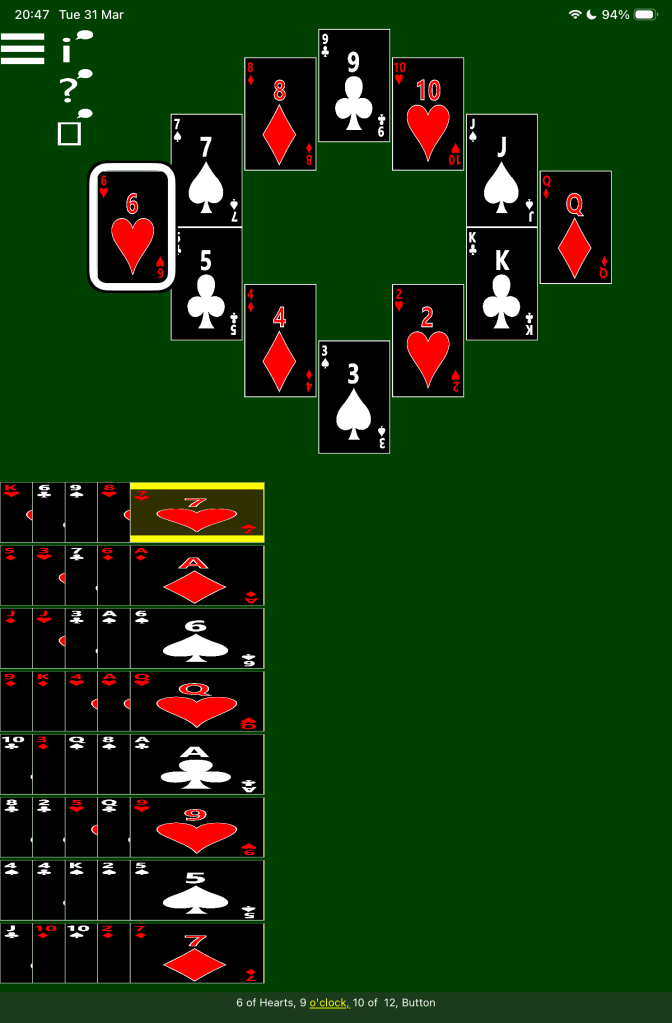
The following picture shows an in-progress game of Grandfather’s Clock solitaire, showing the app’s dark theme colours. The app’s screen reader-related buttons are shown, and the 7 of Hearts in dealt card pile one is selected. VoiceOver’s highlight is at the 6 of Hearts in the clock cards, and its caption says: “6 of Hearts, 9 o’clock, 10 of 12, Button”.
Screen Reader Use
The game-playing experience when using a screen reader is similar to the experience when playing the other solitaire games in the app, and similar announcements are made when moving cards around the game.
When VoiceOver navigates to one of the clock cards, it announces the rank and suit of the card, then its position in the clock, and finally its position in the set of clock cards. For example, “Jack of Clubs, 12 o’clock, 1 of 12, Button”, or “3 of Spades, 6 o’clock, 7 of 12, Button”.
When VoiceOver navigates to one of the cards in the dealt card piles beneath the clock, it announces the rank and suit of the card, followed by its position in the dealt card pile. For example, “7 of Diamonds, 4 of 4”.
Please note than when swiping to move VoiceOver through the cards in the clock, unfortunately VoiceOver does not move from hour to hour. Rather it moves left to right as the cards are shown on the screen, and will also include the optional screen reader-related buttons shown in the app if they’re visible.
To help with faster navigation, the four cards at 12 o’clock, 3 o’clock, 6 o’clock, and 9 o’clock, can be made headings, meaning the related swipe gesture while VoiceOver is in the dealt card piles will move VoiceOver directly to the clock. To have the four clock cards be headings, turn on the related setting in the app Settings page. Please do not turn on this setting if you’re planning to use Voice Control to play the game using your voice.
To move a card, first navigate VoiceOver to the card, and then double tap to select it. VoiceOver will then announce the card as selected. For example, “9 of Heart, selected, 4 of 4”. Then navigate VoiceOver up to the target clock card, and double tap to perform the move. Following the move, VoiceOver will announce what card is now at the top of the dealt card pile where the moved card previously was. For example: “Moved 7 of Hearts to Clock, revealed 8 of Clubs in dealt card pile 2”.
If the setting is on to automatically announce available moves after a move is complete, then VoiceOver will announce any available moves after announcing details of the move just completed.
If the setting is on to show the three optional screen reader buttons, the following screen reader announcements are made when the buttons are clicked:
1. The Game State button. Announces the names of all the cards currently shown at the hour positions in the clock, followed by all the cards in each dealt card pile.
2. The Available Moves button. Announces all moves that are currently available in the game, both from a dealt card pile up to the clock, or between dealt card piles.
3. The Open Cards button. Announce the cards at the top of each of the dealt card piles.
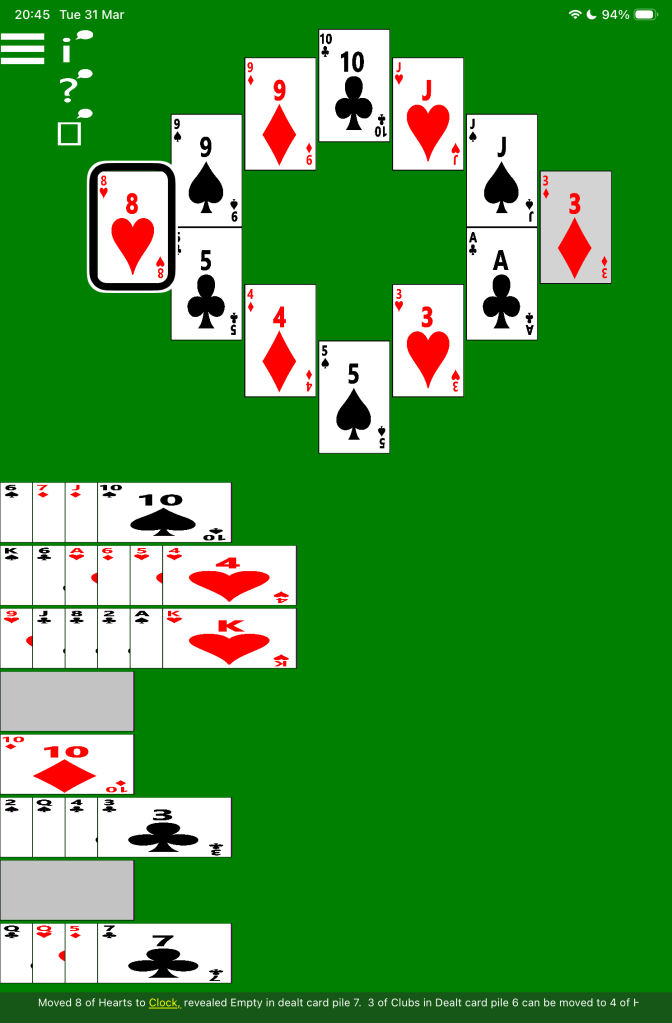
The following picture shows an in-progress game of Grandfather’s Clock solitaire, and app’s screen reader-related buttons are shown. Two of the dealt card piles are empty. VoiceOver’s highlight is at the 8 of Hearts at the 9 o’clock position in the clock cards, and its truncated caption says: “Moved 8 of Hearts to Clock, revealed Empty in dealt card pile 7, 3 of Clubs in Dealt card pile 6 can be moved to 4 of H”.
Speech input
To click a card in a card pile, say “Tap” followed by the name of the card. For example, to move an Ace of Clubs from a dealt card pile to a King of Clubs in the clock, say: “Tap Ace of Clubs”, followed by: “Tap King of Clubs”.
Please make sure the app setting to have certain cards in the app be headings is turned off. Any card that’s a heading is not clickable using iOS Voice Control.
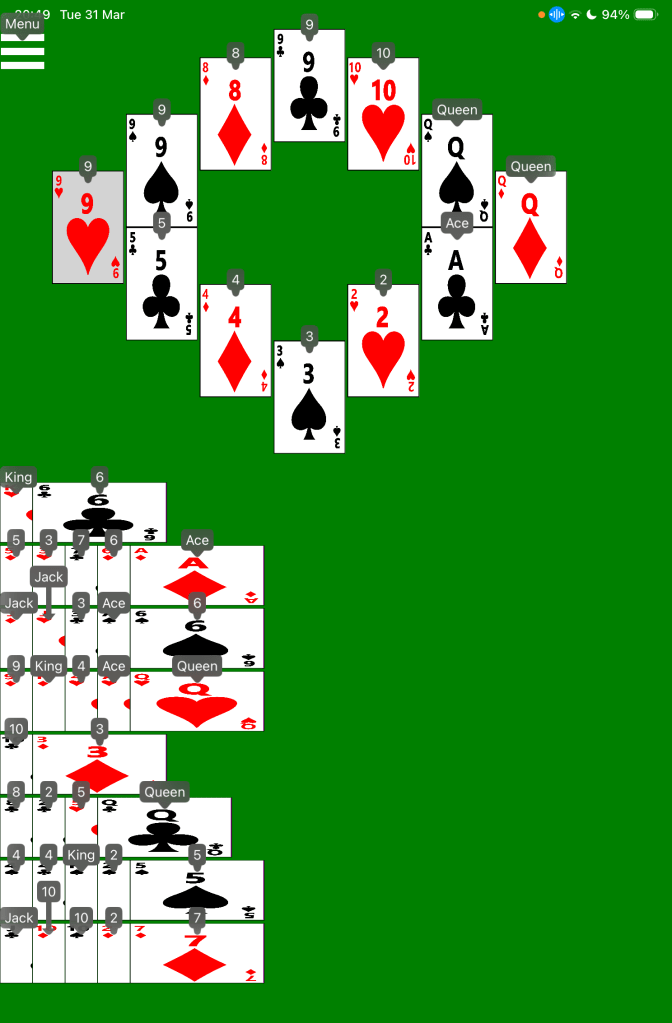
The following picture shows an in-progress game of Grandfather’s Clock solitaire. The iOS Voice Control feature is showing words or numbers by all interactable things shown in the game. For example, “Menu”, “9”, “10”, “Queen”, “King”, “Ace”.
Switch input
On devices supporting switch devices such as an iPad mini, the Grandfather’s Clock Solitaire game can be controlled using a switch device in a similar way to the existing Klondike solitaire game.
Please note that even when the switch control is set to scan by groups of cards, it may still scan through each of the twelve clock cards individually.
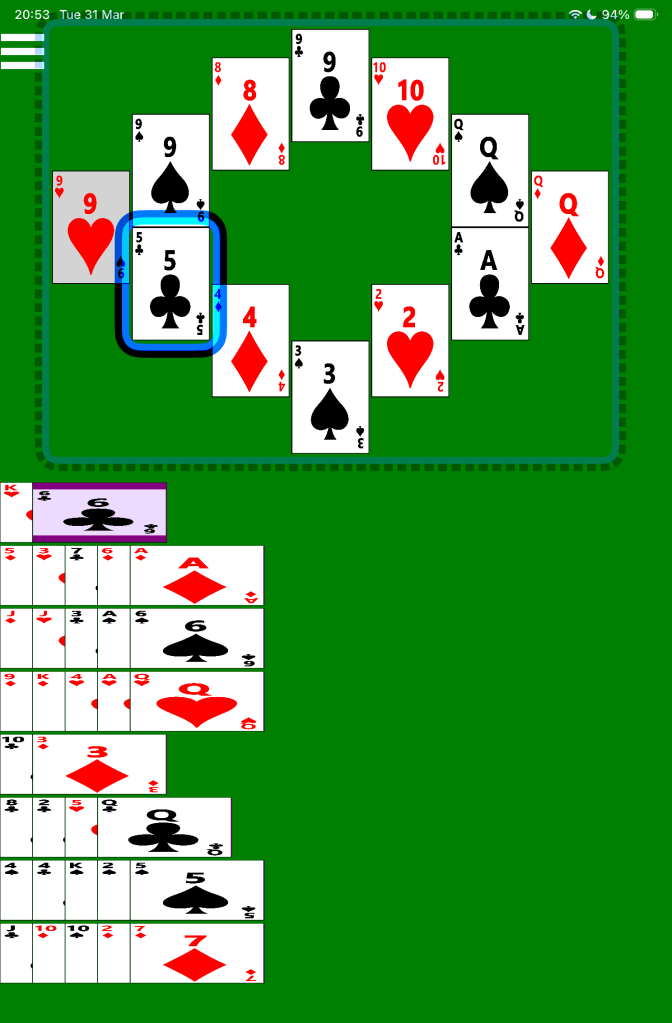
The following picture shows an in-progress game of Grandfather’s Clock solitaire, and the 6 of Clubs in dealt card pile one is selected. The iOS Switch Control feature shows a single translucent blue dotted rectangle around all the clock cards, and a solid blue rectangle at the 5 of Clubs at the 8 o’clock position.


 Accessible Solitaire
Leave a reply to Berenice Avina Cancel reply