The Accessible Solitaire app is a work in-progress, and there are many fixes and improvements that need to be made to it. Work on these fixes is on-going, and all being well the quality of the app will improve over time.
Below are some of the known issues with the app. If you’re hitting other issues not listed here, please do let me know.
In the Pyramid and Tri Peaks games, after a card has been moved, it takes a couple of seconds for VoiceOver to settle. This means if you’re moving VoiceOver around immediately after the move, it might jump somewhere unexpected, and you’ll need to reposition it.
Sometimes VoiceOver jumps to the Menu button after a move.
Sometimes the unexpected screen reader announcements aren’t heard at all. For example, “Game restarted”. Also, in the Pyramid game, VoiceOver sometimes doesn’t announce which card was revealed.
Sometimes a screen reader might announce information that’s not important, or ambiguous, making it harder to focus on the important part of the announcement.
On Android, when swiping left/right to move TalkBack along a row in a the Pyramid or Tri Peaks games, TalkBack moves diagonally instead of horizontally.
It can take far too long to restart a game of Baker’s Dozen Solitaire. This means when selecting the game from the app menu, it’s often not obvious as to whether the selection at the menu was actually made.
After cards are discarded on a row, the VoiceOver swipe direction can get reversed for the remaining cards.
The setting to change the colour of playing card suits had to be removed as it was making the app unstable.
The game does not support changing between portrait and landscape screen orientation while a game is being played.
The Pause Game button is clipped in a portrait game of Spider Solitaire. Also, the lowest of the three screen reader buttons can be clipped.
If music in another app is playing, and sounds are enabled in the Accessible Solitaire game, the music pauses when the app makes any sort of noise, such as flipping a card.
The Zoom Card Popup can show unexpected when rapidly tapping on two different cards, and if it shows a picture card, the popup contents can overflow outside the card border in the popup.
All empty dealt card piles have the same name of: “Empty Dealt card pile”. The names should include the index of the dealt card pile.
Some buttons and text aren’t appearing on the Settings page when fonts are large.
On Windows, tabbing through the Settings page eventually moves keyboard focus through to the obscured main app buttons and cards.
Double-tap with TalkBack on a selected dealt card, does not deselect the dealt card.
The app needs to be uninstalled and reinstalled if the device runs out of power when app’s running.
The Left/Right Arrow key press in dealt card piles sometimes does nothing on Windows.
Accessible Solitaire Version 4.0 includes a new solitaire game called Spider Solitaire. This is in addition to the existing Klondike, Pyramid, Tri Peaks, and Baker’s Dozen solitaire games in the app.
If you’d like the new Spider Solitaire game updated to be made more accessible and enjoyable for you, please add your suggestions in the comments section of this post.
A game of Spider Solitaire uses two packs of 52 playing cards, making a total of 104 cards. The two packs are shuffled together, and visually, all cards shown face-down appear the same in the app.
When a game of Spider Solitaire starts, 54 playing cards are dealt out in ten dealt card piles. The first four piles contain 6 cards, and the remaining six piles contain 5 cards. The cards in the piles are arranged such that only the top card in a pile is fully shown, and the other cards in the pile only have the top part of each card shown.
Cards can be moved between the dealt cards piles by clicking any face-up card in a pile and then clicking the topmost card in another dealt card pile. The move is only possible if the rank of the first card clicked is one less than the rank of the second card clicked. Unlike the Klondike Solitaire game, the suits of the cards clicked in the Spider Solitaire game does not matter. For example, a Four of Diamonds can be moved on top of a Five of Hearts.
If the first card clicked in the moved is not the topmost card in the dealt card pile, all the cards that lie on top of the card are also moved when the clicked card moves.
Cards can be moved to an empty dealt card pile by first clicking the card to be moved, and then clicking the empty dealt card pile.
The remaining 50 cards not dealt out when the game starts are placed face-down in a pile near the top left corner of the app. If the pile is clicked, ten more cards are dealt out from the pile, with one card being placed face-up on top of each of the ten dealt card piles. Once the remaining card pile is clicked five times, all the remaining 50 cards will have been dealt out and the remaining card pile becomes empty. Once that pile is empty, no more action can be taken with the empty pile.
Note that the ten cards from the remaining card pile will not be dealt out if any of the dealt card piles are empty, and there are enough dealt cards in the ten piles to move cards into the empty dealt card piles. So if the remaining card pile is clicked when there is an empty card pile that can have a face-up card already in one of the other dealt card piles moved into it, a message will pop up to remind the player to move a face-up card into the empty card pile.
When a sequence of 13 cards in rank order, from a King down to an Ace, is formed in a dealt card pile, the 13 cards are removed from the pile and discarded. Text shown to the right of the remaining card pile near the top left corner of the app, shows the number of sequences discarded. The game is won by discarding 8 sequences, which means all the cards from the two packs have been discarded. If once all the cards in the two packs have been dealt, the cards cannot be arranged into the 8 sequences for discarding, the game is not won and the game needs to be restarted.
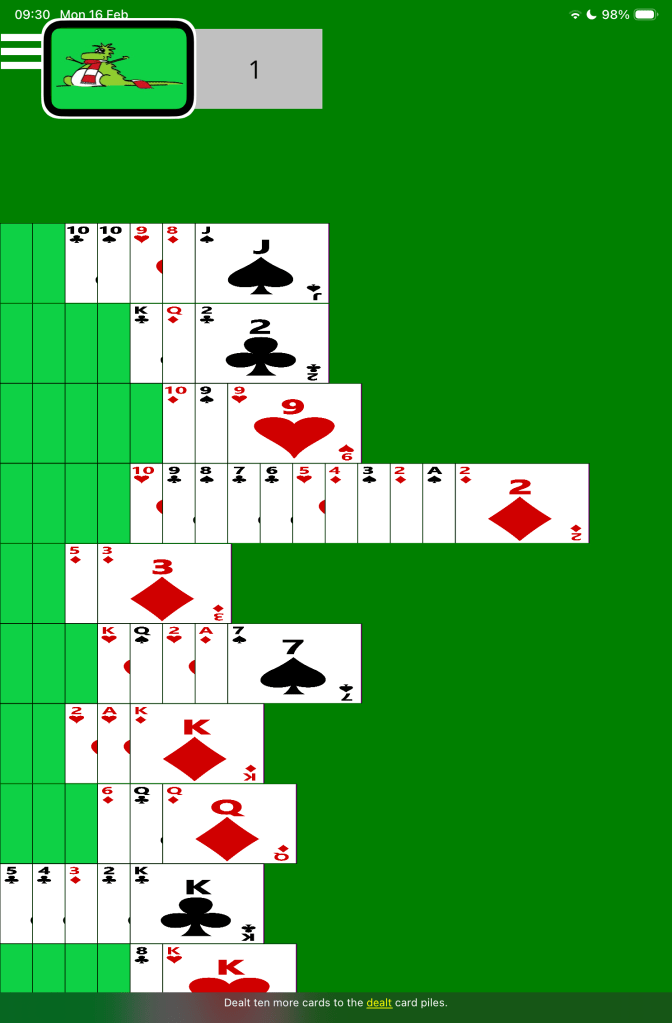
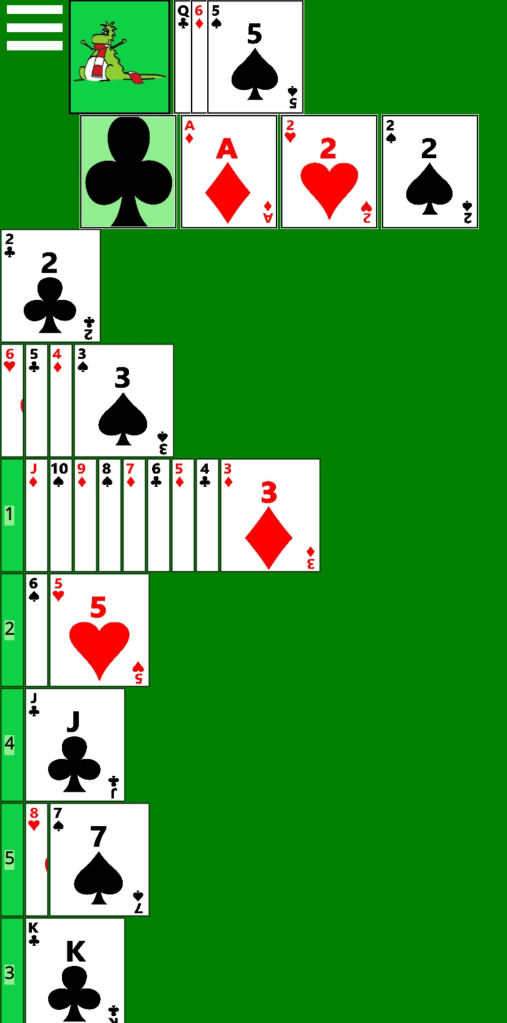
The picture below shows an in-progress game of Accessible Spider Solitaire, showing in portrait orientation on an iOS device. The VoiceOver screen reader’s highlight is at the Next Card button, and its captions shows: “Dealt ten more cards to the dealt card piles”.
Screen reader use
The game-playing experience when using a screen reader is similar to the experience when playing the Klondike game, and the same announcement is made in both games when moving cards between dealt card piles.
The button representing the pile of remaining cards near the top left corner of the app is named “Next card”, despite clicking on the button resulting in the next ten remaining cards being dealt out. The button is named “Next card” in order to keep the name consistent in all the solitaire games in the Accessible Solitaire app. When the button is clicked, a screen reader will announce: “Dealt ten more cards to the dealt card piles.”
When a sequence of 13 cards is discarded from a dealt card pile, a screen reader will announce: “Discarding completed sequence number”, followed by the total number of sequences discarded, including the sequence now being discarded. For example, when the first sequence is discarded, the announcement is: “Discarding completed sequence number 1”, and when the seventh sequence is discarded, the announcement is: “Discarding completed sequence number 7”. When the 8th sequence is discarded, the related discard announcement is not heard because the message window relating to the game being won pops up and the screen reader announces details of that window.
If you find that the “Discarding completed sequence number” announcement is not made, please do let me know through the comments section of this post. In some rare cases, I’ve found the announcement relating to where the screen reader has moved can prevent the “Discarding completed sequence number” announcement from being made.
If the setting is on to show the three optional screen reader buttons, the following screen reader announcements are made when the buttons are clicked:
1. The Game State button. Announces the names of all the face-up cards in the dealt card piles, the number of discarded sequences, and whether any more remaining cards are available.
2. The Available Moves button. Announces all moves that are available between the dealt card piles.
3. The Open Cards button. Announces the topmost card in each of the dealt card piles.
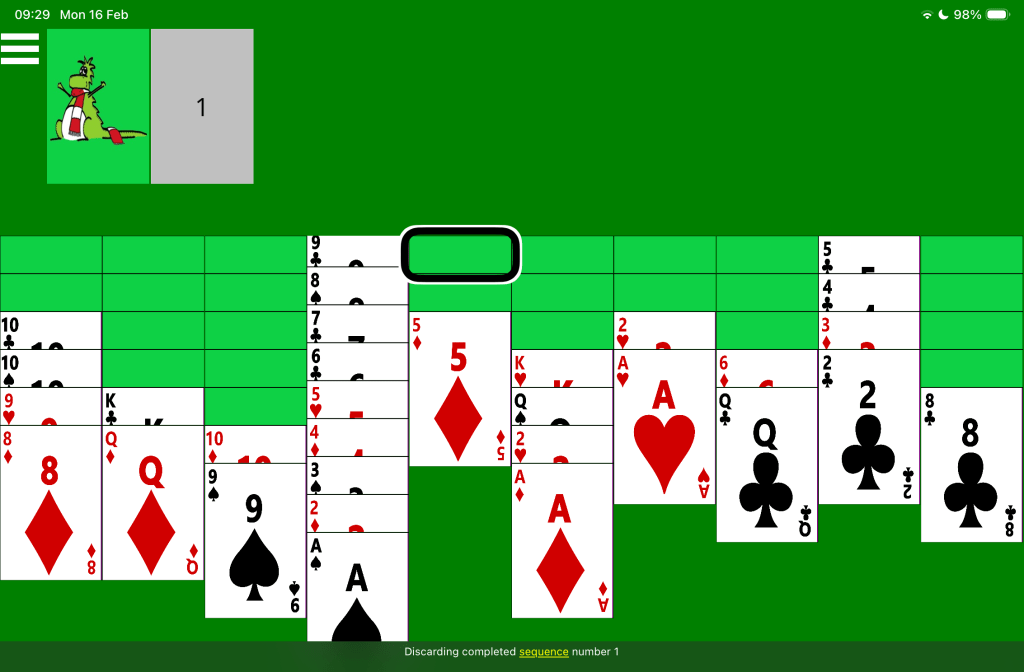
The picture below shows an in-progress game of Accessible Spider Solitaire, showing in landscape orientation on an iOS device. The VoiceOver screen reader’s highlight is at a face-down card in a dealt card pile, and its captions shows: “Discarding completed sequence number 1”.
Speech input
To click a card in a card pile, say “Tap” followed by the name of the card. For example, to move a 4 of Diamonds onto a 5 of Hearts, say: “Tap four of diamonds”, followed by: “Tap five of hearts”. To turn over the next ten cards from the remaining cards pile, say: “Tap next card”.
Note: Given that two packs of playing cards are used in the Spider Solitaire game, often the same named card can appear in two places at the same time. For example, there may be two 4 of Diamonds cards which can be clicked. So when you say: “Tap four of diamonds”, the voice control feature might not know which 4 of Diamonds you want to click. In that case, a small number 1 or 2 will appear beside each of the 4 of Diamonds cards. You then say either “one” or “two” to specify which of the two cards you want to click.
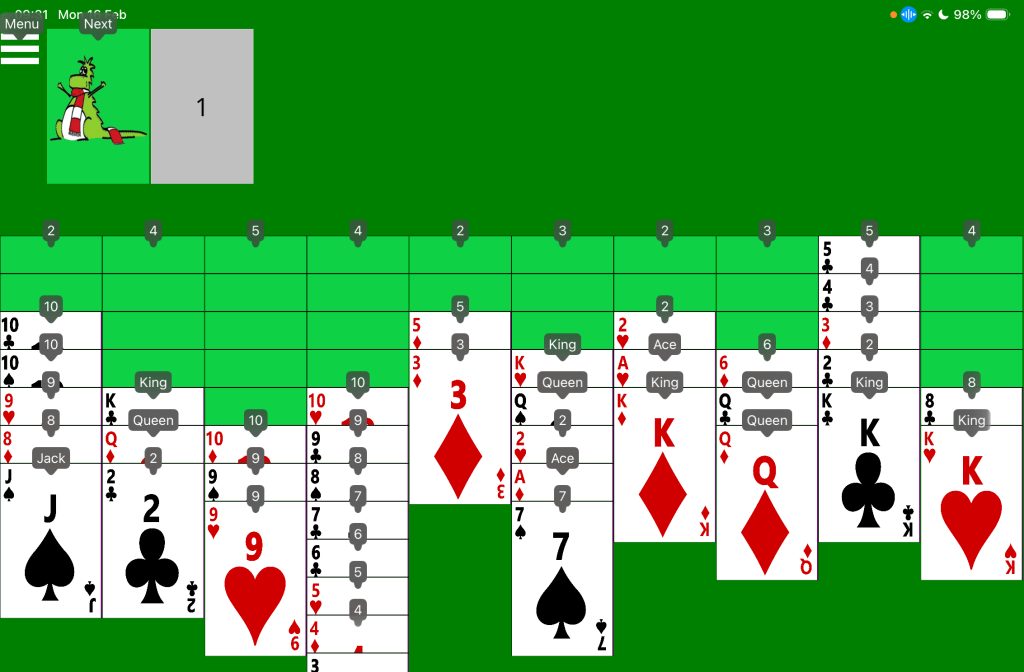
The picture below shows an in-progress game of Accessible Spider Solitaire on an iOS device. The iOS Voice Control feature is showing a small number or name beside all clickable parts of the game. For example, “Menu”, “Next”, “2”, “10”, and “Jack”.
Switch input
On devices supporting switch devices such as an iPad mini, the Spider Solitaire game can be controlled using a switch device in a similar way to the existing Klondike solitaire game.
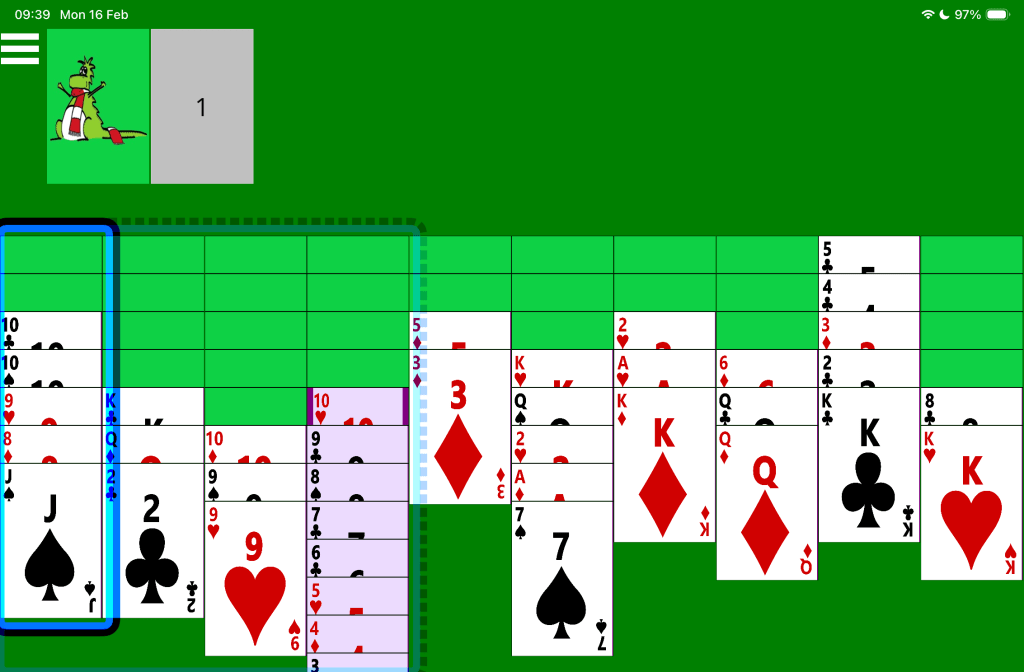
The picture below shows an in-progress game of Accessible Spider Solitaire on an iOS device. The iOS Switch Control feature is showing a translucent dotted blue box around the first four dealt card piles, and a solid blue box around the first dealt card pile.
All usable aspects of the Accessible Solitaire games have come about thanks to feedback from players. In fact the app only exists because someone asked if I’d be building a Klondike solitaire app. And since I built it, I was asked if I could add a Pyramid, Tri Peaks, and Baker’s Dozen game, so they’re all in the app now.
But when I added the new games, from a software development perspective, the games were rather squeezed into the app which had only really been designed to handle the Klondike game. So while the new games generally seem to work ok, the whole app is now not as robust as players need it to be. For example, when dealing cards or resuming an earlier game, it can take a while for the game to be ready to play, and sometimes dealt card piles might not appear at all and the app needs to be restarted. And I’ve yet to publish the Baker’s Dozen game for Android, as the game doesn’t work on that platform yet. All in all, I need to spend the next couple of months reworking the app’s code to make to more robust now and into the future.
During this time, if I add any new features, they’ll probably be very small ones which require few code changes.
But hopefully later this year the app will be ready for more significant updates, including potentially adding new types of solitaire games. And with that in mind, I’d be very interested in hearing from you as to which solitaire games you’d like me to add. I can’t guarantee I’ll be able to add the games, but I can at least try.
A couple of players have already suggested the following four solitaire games which I’ll consider:
Spider Solitaire.
FreeCell Solitaire.
Royal Parade Solitaire.
Leap Frog Solitaire.
If you’d also like me to look into adding any of these games, or would like me consider other types of solitaire, please do let me know.
Accessible Solitaire Version 3.14 includes a new solitaire game called Baker’s Dozen Solitaire. This is in addition to the existing Klondike, Pyramid, and Tri Peaks solitaire games in the app.
Important: Please note that the Baker’s Dozen game is very difficult to win, and so it is recommended that when getting acquainted with the Accessible Solitaire app, you start with one of the other solitaire games with the app. Note also that due to the wide layout of the Baker’s Dozen game, it’s preferable to play using a device in a landscape orientation.
When a game of Baker’s Dozen starts, all 52 playing cards are dealt out in 13 piles of 4 cards. The cards in the piles are arranged such that only the top card is fully shown, and the other cards in the pile only have the top part of each card shown.
To win the game, move all the cards from the 13 piles of cards up to the four target card piles. The cards are moved up to the target card piles in a similar order to that used in the Klondike solitaire game, with the Ace of a suit moved first to its matching suit’s target card pile, followed by the 2 of the same suit, up through all the cards of that suit, and finally the King.
Once a card has been moved to a target card pile, it cannot be moved again.
The only other move available in the game is to move cards between the 13 dealt card piles, in order to be able to access a card lower in a pile that can be moved to a target card pile.
Only the top card in a pile can be moved. The other cards in the pile cannot be selected for a move. So unlike the Klondike solitaire game, multiple cards cannot be moved at the same time.
A card can be moved on top of the top card in another pile if the rank of the card being moved is one less than the card in that other pile. Unlike the Klondike solitaire game, the suit of the two cards involved does not matter. For example, in the Baker’s Dozen game, a 4 of Clubs at the top of one pile can be moved onto a 5 of Spades at the top of another pile.
Once a card pile is empty, no card can be moved onto the empty pile.
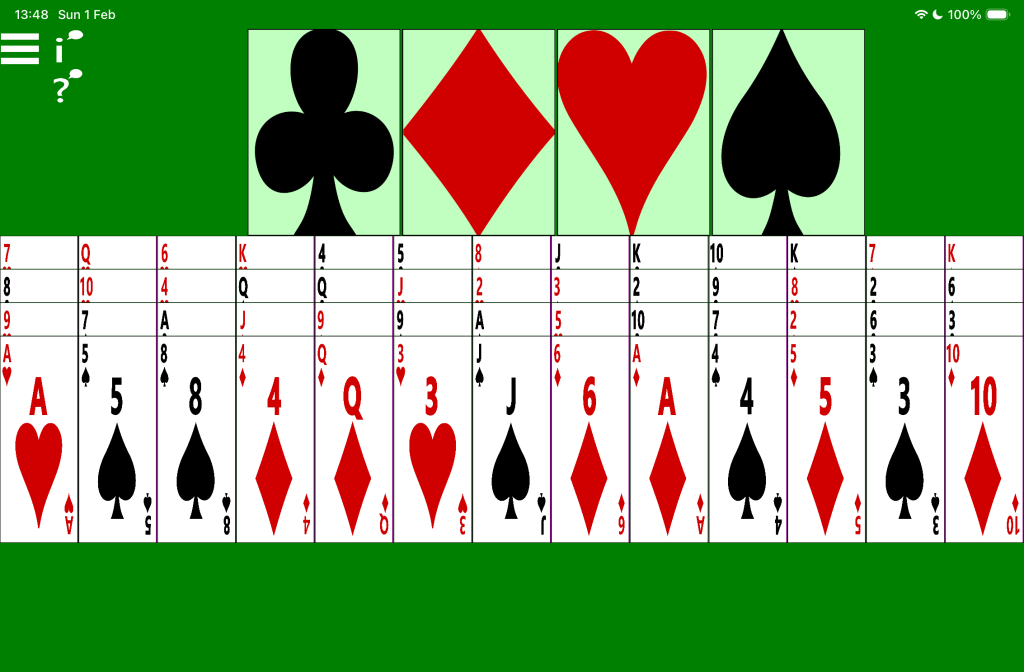
The picture below shows a new game of Accessible Baker’s Dozen solitaire. At the top of the screen are the four empty target card piles. Below are the 13 piles of cards, each containing 4 cards. Amongst the top cards of the 13 piles are two Ace cards, which are eligible for moving to the associated target card piles.
Screen reader use
The game-playing experience when using a screen reader is similar to the experience when playing the Klondike game.
Important: Currently the screen reader announcements made following a click on the button to have available moves announcements is not helpful. The announcement includes every available move, and most of those moves will not help to win the game. Please send feedback to let me know what move-related announcement would be more helpful. While it won’t be practical for me to have the screen reader announce the move most likely to help win the game, perhaps the announcement could include the position of the few cards in the dealt card piles which are closest in rank to the cards in the four target card piles.
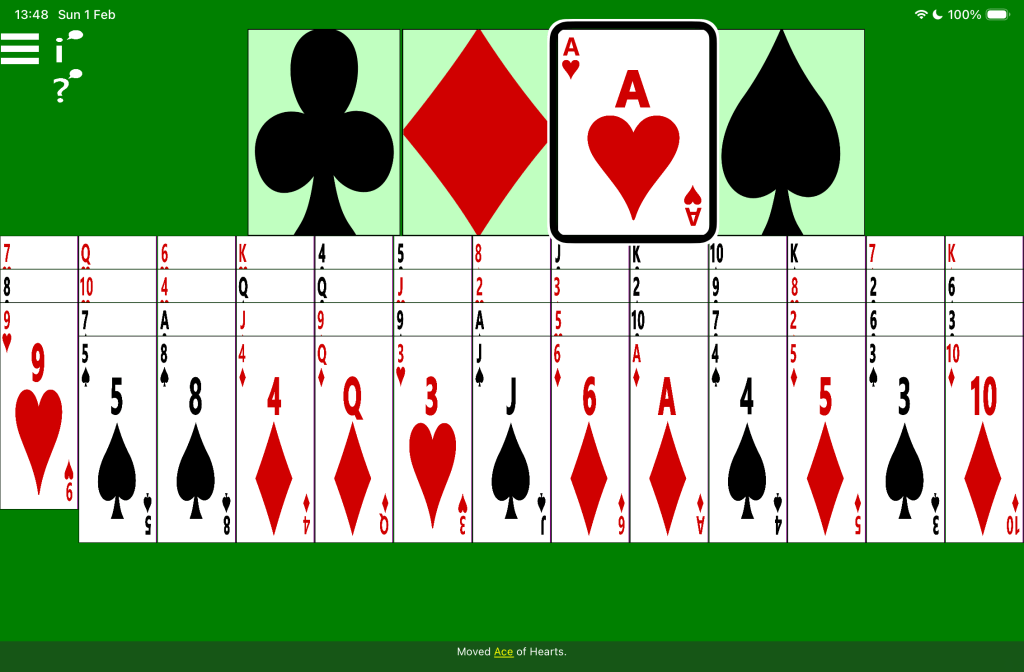
The picture below shows an in-progress game of Accessible Baker’s Dozen solitaire. The Hearts target card pile contains the Ace of Hearts, and the first pile of dealt cards only contains three cards. The screen reader’s highlight is around the Ace of Hearts, and its caption says: “Moved Ace of Hearts.
Speech input
To click a card in a card pile, say “Tap” followed by the name of the card. For example, “Tap four of clubs”. To move a selected Ace from a card pile up to the associated target card pile, say: “Tap”, then the suit name, followed by “pile”. For example, “Tap Diamonds pile”.
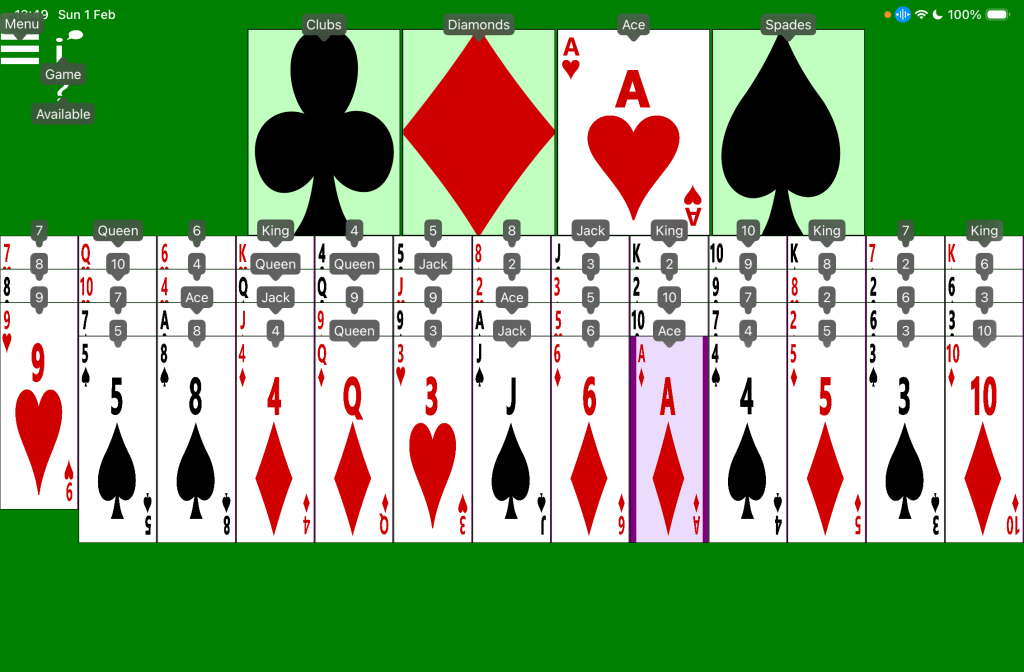
The picture below shows an in-progress game of Accessible Baker’s Dozen solitaire. The Hearts target card pile contains the Ace of Hearts, and the first pile of dealt cards only contains three cards. The device’s voice control feature is showing numbers or words by every clickable element in the game. For example: “Menu”, “Clubs”, Ace”, and “9”.
Switch input
On devices supporting switch devices such as an iPad mini, the Baker’s Dozen game can be controlled using a switch device in a similar way to the existing Klondike solitaire game.
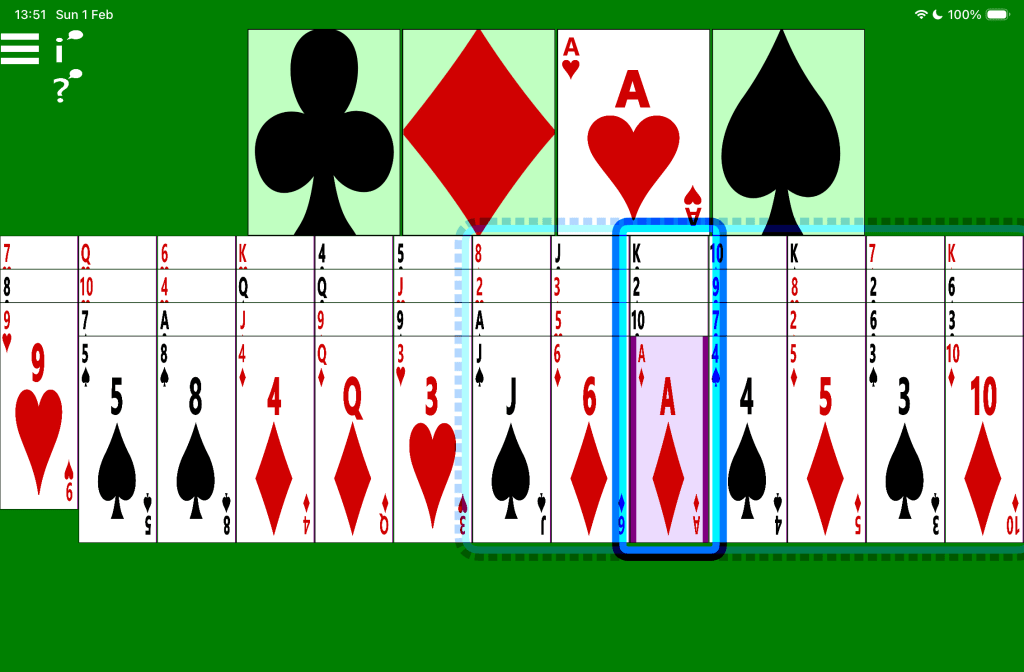
The picture below shows an in-progress game of Accessible Baker’s Dozen solitaire, with a device’s switch control feature showing a translucent dotted blue rectangle around the last seven piles of dealt cards. A solid blue rectangle appears around the ninth pile.
Some players of Accessible Solitaire are very interested in the time it takes to win a game of the Klondike, Pyramid, or Tri Peaks solitaire games, and this time is shown in the Congratulations message when the game is won.
The time reported in the message takes into account players moving away from the app once a game is started, and later returning to the in-progress game. It also takes into account starting a game, then moving over to another type of solitaire in the app, and later returning to the original game.
However, previously, there was no way to simply pause an in-progress game while you took care of something even more important than playing the solitaire game. For example, putting the kettle on. But now, in Version 3.13, players can pause and resume games whenever they want. And while the game is paused, that won’t add to the time reported when the game is eventually won.
When the game is paused, all the contents of the game are still visible and accessible to a screen reader, as some players might want to consider the state of the game while it’s paused. Visually, the background of a paused game changes from green to grey while the game is paused.
If any card is clicked while a game is paused, a message pops up to remind players that the game is paused, and that the game needs to be resumed before play can continue.
To pause a game, first go to the Settings page and turn on the setting called: “Show Pause/Resume button.” Once this is turned on, a Pause button appears below the app Menu button near the top left of the game. Then click the button to Pause the game. When the game is paused, the Pause button changes to become a Resume button, and a screen reader will announce: “The game is now paused.” To resume the game, click this “Resume” button, and the game will resume, and a screen reader will announce: “The game has resumed.”
If the setting to show the Pause/Resume button is turned off and the current game is already paused, it will automatically resume.
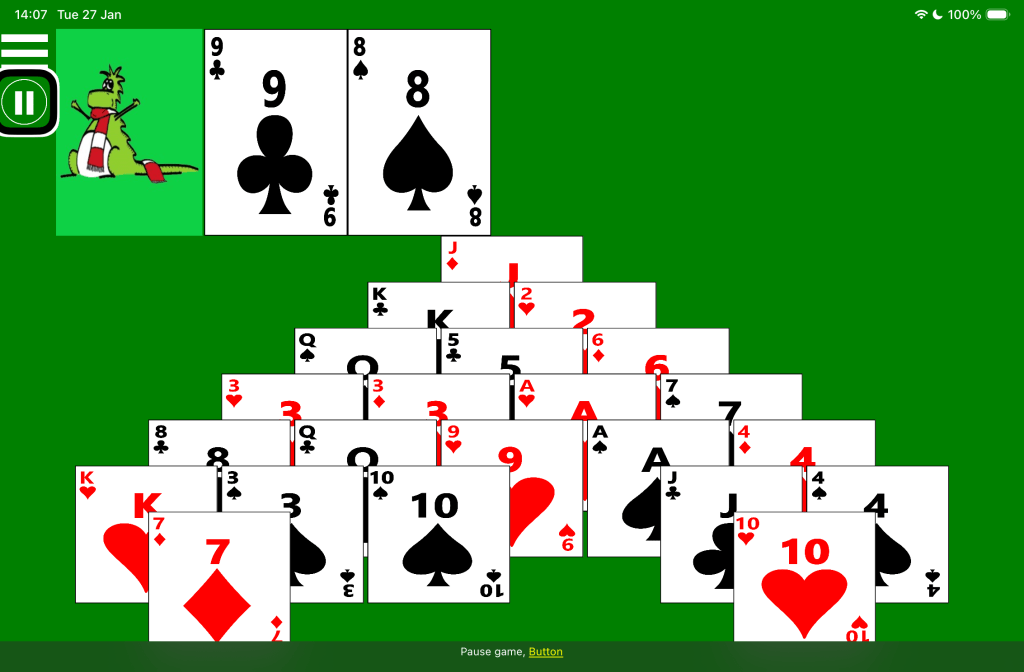
The following picture shows an in-progress game of Pyramid solitaire. The screen reader highlight is shown at the Pause button near the top left of the game, and the screen reader caption says: “Pause game, Button”.
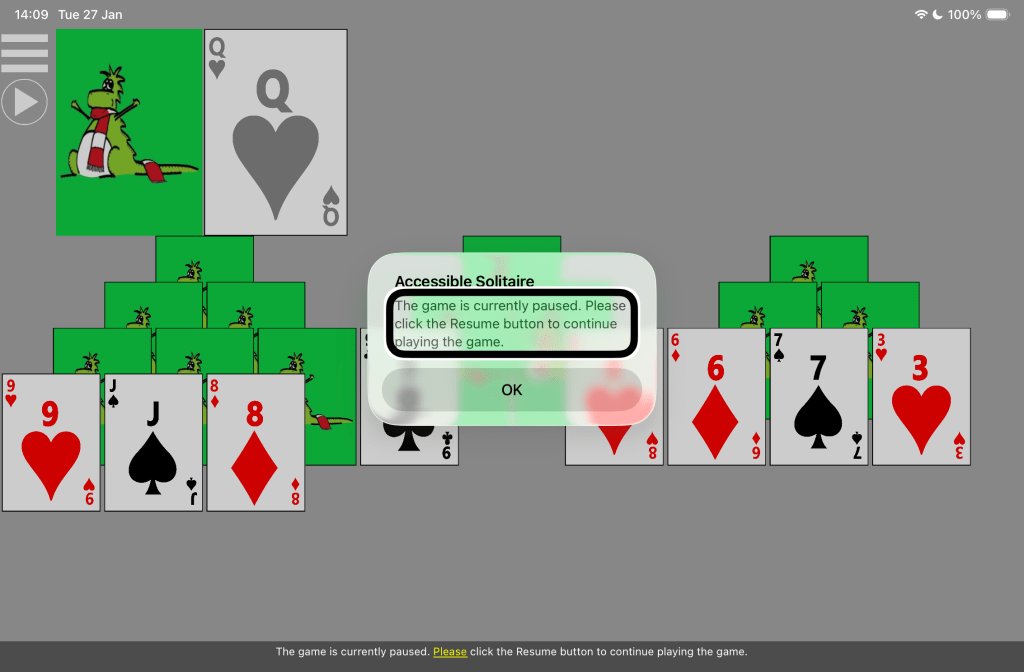
The following picture shows an in-progress game of Tri Peaks solitaire. A Resume button is shown near the top left of the game. The screen reader highlight is shown around text in a popup window over the game, and the screen reader caption says: “The game is currently paused. Please click the Resume button to continue playing the game.”
I’m getting some very encouraging feedback from players playing the new Tri Peaks game in the Accessible Solitaire app! A number of people have told me they’ve won the game, and for people trying to beat their own records, I’ve been told my one player who uses VoiceOver, she’s won the game in an impressive 6 minutes and 50 seconds.
I do have a number of fixes and improvements that I need to make to the app, which hopefully I’ll be able to sort out over time. For example, when playing with VoiceOver on iOS, after completing a move, you need to wait a couple of seconds for VoiceOver to settle before making the next move. And with TalkBack on Android, swiping left and right through the cards in the rows, moves TalkBack diagonally up and down between rows.
But once you get used to how the screen reader works in the game, I think the game might be the perfect introduction to the Accessible Solitaire app as each move only requires one click, rather than two clicks as it does with the Pyramid and Klondike games.
I’m not a screen reader user myself, but I have won the Tri Peaks solitaire game using VoiceOver without viewing the screen at all when playing the game. For me, I found the following settings very helpful.
Automatic announcements. This helps me quickly learn what move, if any, is available after a move’s completed. The automatic move announcement is made 3 seconds after a move is completed, and may interrupt what the screen reader is already saying.
Headings. This makes it quick for me to swipe up or down to move the screen reader through the rows in the triangles, up to (or down from) the Next Card button or the upturned card on the waste pile. And when moving through the rows in this way, I know I’m always moving to the start of a row, and I find that predictability helpful.
Sounds. This helps me quickly learn whether an attempt to move a card was successful or not.
I also turned on the setting to show the screen reader related buttons, as I needed to click the button to announce available moves if I forgot what the automatic announcement said. And of course I turned on the celebratory sound just to make completing the game more fun!
With the above settings turned on, I found I never moved VoiceOver manually by moving my finger around the screen, rather I always swiped left, right, up or down.
If you have any tips for players on how to make the game more fun to play, please do share them here. I’d love to hear what settings you use, or how you use a screen reader, a switch device, or your speech, to get the most from the Accessible Solitaire game!
Accessible Solitaire Version 3.11 includes a new solitaire game called Tri Peaks Solitaire. This is in addition to the existing Klondike and Pyramid solitaire games in the app.
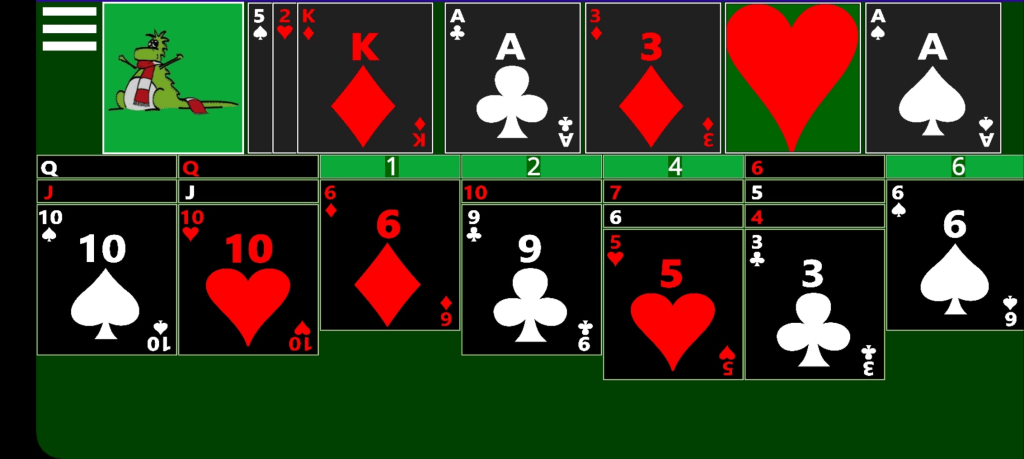
When a game of Tri Peaks solitaire starts, 28 playing cards are dealt to form three triangles next to each other. The triangles of cards each have four rows, with one card on the top row, then two cards, then three cards, and finally four cards on the bottom row. The bottom corner cards in the middle triangle are shared with the two adjacent triangles of cards, which means the bottom row of cards contains ten cards and runs continuously across the screen.
The cards are arranged such that all cards on the top three rows of triangles are partially obscured by the two cards in the row beneath them.
At the start of the game, only the cards on the fourth row in the triangles are face-up.
Given that the cards in the three triangles are sized to fit the screen, it’s recommended that the game is played with your device in landscape orientation.
The remaining 24 cards from the pack of cards are placed face-down in a pile near the top left of the screen, in a similar way to how they’re placed in the other solitaire games in the app. When the Tri Peaks game starts, the top card in the remaining card pile is turned up and placed in a waste pile next to the pile of remaining cards.
To win the game, move all the cards from the three triangles of cards, up to the waste pile. To move a card from a triangle of cards, click the card. If the card’s rank is one different from the rank of the card at the top of the waste pile, then the clicked card will be moved to the top of the waste pile. For example, if the top card in the waste pile is the 4 of Clubs, then a card with a rank of 3 or 5 of any suit can be moved from the triangles of cards. If one of the cards involved in the move is an Ace, then the other card can be either a 2 or a King.
A card can only be moved from a triangle of cards if it is open, which means there are no cards partially obscuring it from the row below it. Once cards are moved from a row and a card on a higher row becomes open, it Is turned face-up.
If it is not possible to move a card from one of the triangles of cards up to the waste pile, then a click on the remaining card pile will turn up the top card from the remaining card pile and place it on the waste pile. Once this is done, the triangles of cards can be re-examined to consider whether a card can now be moved up to the waste pile. Once all the remaining cards are turned up and no more cards can be moved from the triangles of cards, the game is over. Note that in the Tri Peaks game, the pile of turned up remaining cards cannot be turned back down as it can in the other solitaire games.
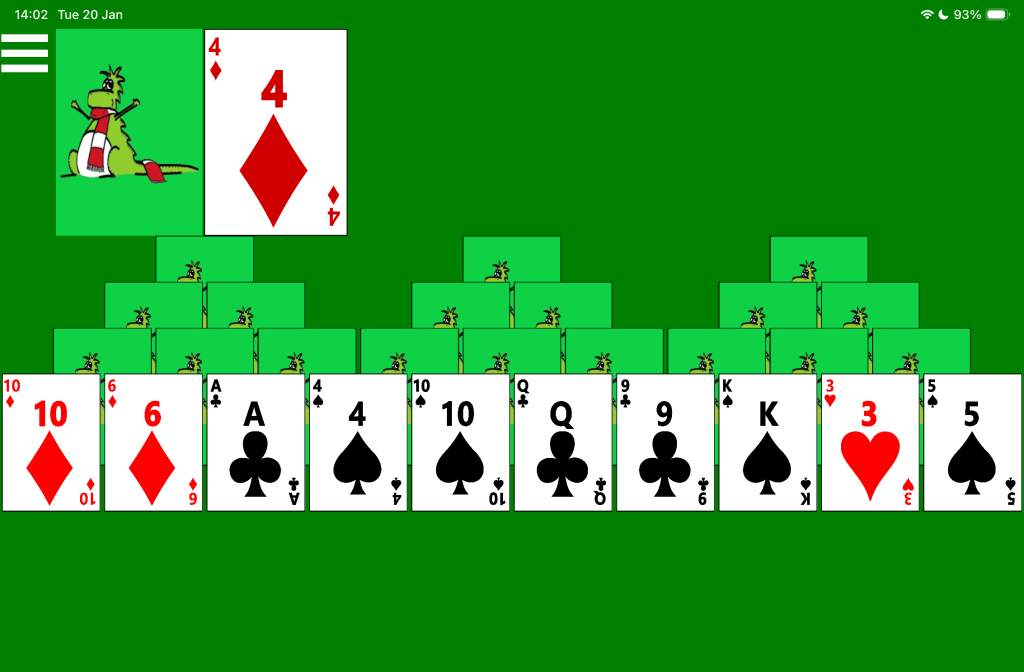
The picture below shows a new game of Accessible Tri Peaks solitaire. Three triangles of card are arranged across the screen, with all cards face-down except the ten cards in the fourth row which are all face-up. Near the top left corner is the pile of remaining cards and next to it is the 4 of Diamonds on the waste pile.
Screen reader use
The game-playing experience when using a screen reader is similar to the experience when playing the Pyramid game.
Important (PLEASE NOTE THIS): When a card is moved from a triangle of cards up to the waste pile, the screen reader will move away from that moved card to either another card in the triangle of cards, or to the main Menu button. It may take a couple of seconds for the screen reader to move to its new location after the move, and so you may want to wait for a moment to let the screen reader settle. Otherwise, you might begin the next move and find the screen reader jumps away while you’re doing that. Once the screen reader has repositioned itself, it may be necessary to move it back to some point of interest in the triangles of cards. Also, if the setting is on to announce available moves after a move is complete, that announcement will be made three seconds after the move is completed, regardless of whether the screen reader is already making an announcement related to where it has moved.
Depending on the screen reader, when swiping left or right to move through the cards in the triangles of cards, the navigation may be either left or right in a row, or diagonally through the triangles of cards.
By default, none of the cards in the triangles of cards are headings. If the related setting is turned on, then the first card in each row across the screen becomes a heading, enabling faster screen reader swipe navigation between rows.
Please consider turning on the following app settings when using a screen reader to play the Tri Peaks game.
Show screen reader buttons. This means the screen reader can announce available moves in the game, and details of which cards are currently open in the triangles of cards.
Automatic move announcements. This means the screen reader will automatically announce details of what moves are available after a move is complete. As mentioned above, please give the screen reader three seconds to begin that announcement after a move is complete.
Set as headings. This enables faster screen reader navigation between rows. Please do not turn this on if the game is played with speech input.
Sounds: Play sounds when a move attempt is successful and when it is not successful. Also play a sound when the game is won.
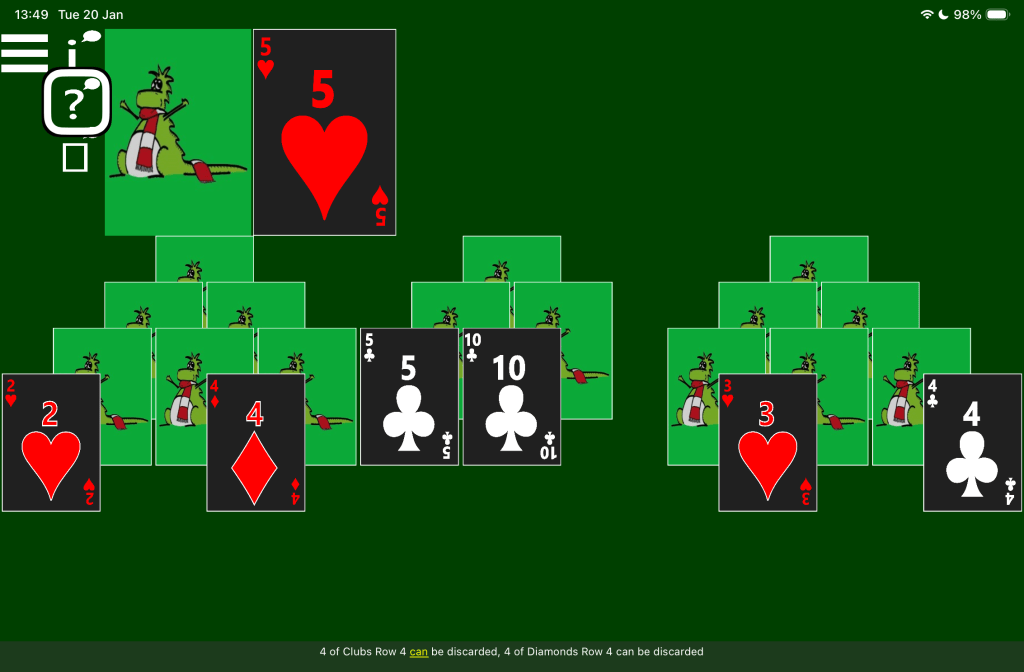
The picture below shows a game of Accessible Tri Peaks solitaire in dark app theme colours, and a screen reader’s caption showing available moves in the game. The three triangles of cards have had some cards removed and there are face-up cards on both the third and fourth rows. The screen reader highlight is at the button for announcing available moves in the game, and its caption says: “4 of Clubs Row 4 can be discarded, 4 of Diamonds Row 4 can be discarded”.
Speech input
To click a card in the triangles of cards, say “Tap” followed by the name of the card. For example, “Tap four of clubs”. To turn up the top card in the remaining card pile, say: “Tap next card”.
Say “Tap Menu” to open the app menu and restart the game, select another solitaire game, or open the Settings page.
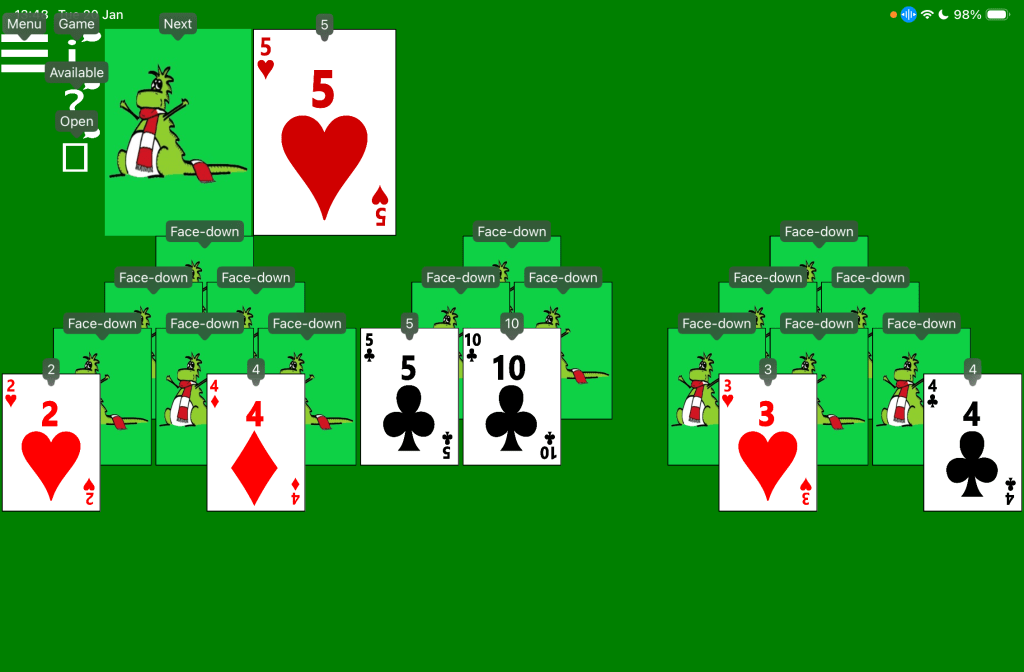
The picture below shows a game of Accessible Tri Peaks solitaire with a device’s speech control feature showing names by the various buttons and cards shown in the game. The three triangles of cards have had some cards removed and there are face-up cards on both the third and fourth rows. Small windows appear by all elements in the game, containing names including: “Menu”, “Game”, “Available”, “Open”, “Next”, Face-down”, “2”, “4”, and “5”.
Switch input
On devices supporting switch devices such as an iPad mini, the Tri Peaks game can be controlled using a switch device in a similar way to the existing Pyramid solitaire game.
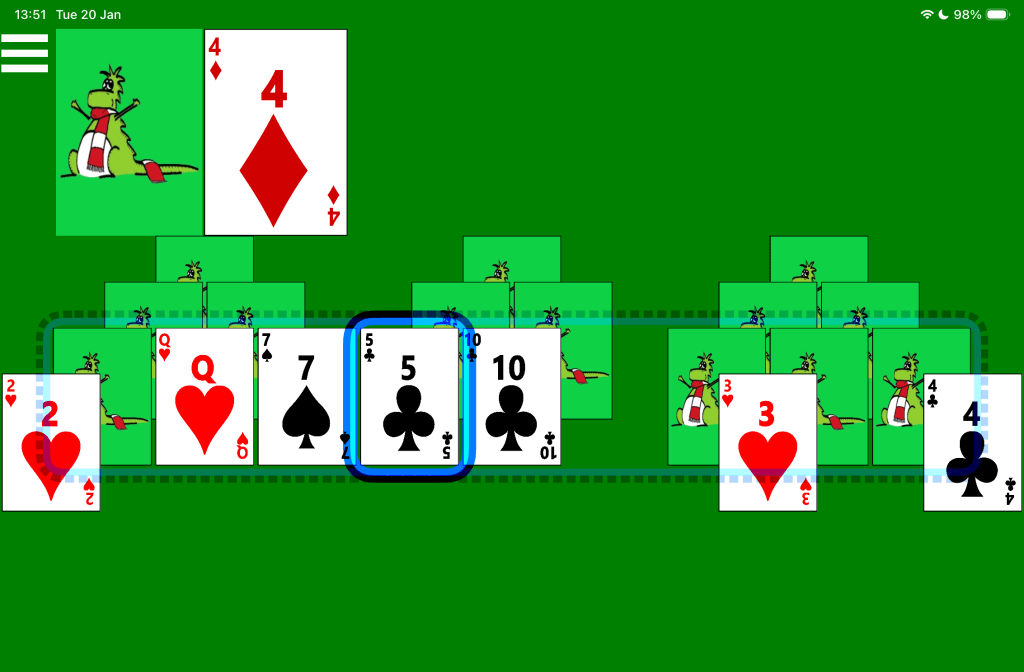
The picture below shows a game of Accessible Tri Peaks solitaire with a device’s switch control feature showing a dotted highlight around the third row of cards across all triangles of cards, and a solid highlight on one of the cards on that third row. The three triangles of cards have had some cards removed and there are face-up cards on both the third and fourth rows. A translucent dotted blue rectangle surrounds the third row of cards across all triangles, including face-down and face-up cards, and one empty space. A solid blue rectangle appears around the 5 of clubs on that row.
Here’s a quick update on the iOS Accessible Solitaire app as it stands at the end of 2025. The app is freely available at the Apple App Store, Accessible Solitaire.
First the bad news: Two people have contacted me to let me know that the app simply closes down during game play for no reason. This is obviously very serious, and the first thing I’ll be working on when I get back to the app in 2026. Unfortunately, this problem doesn’t happen for me on my own iPad mini running iOS 26, so it might take a little while to get to the bottom of it. For any players affected by this, please do accept my apologies. I’ll try my best to get it fixed as soon as possible.
Now the good news: The new Pyramid Solitaire game seems to be going down well. And very importantly, players are sending me feedback which is helping me learn how I can make the game more enjoyable to play.
For example, one player suggested that the “Congratulations!” message that appears when you win a game should include the time it took to play the game. And another player suggested that the game should provide a way to have the VoiceOver screen reader announce which cards in the pyramid are open, meaning that they can be selected. That player felt that by adding that feature, the time it takes to win the game could be dramatically reduced. And one of the very important goals of the app is that it should be efficient to play the game.
Actually, that last point is very significant. After I added the suggested button, the person who requested it said: “The first game of pyramid solitaire I won took me 20 minutes and 27 seconds to complete, and the game of pyramid solitaire I just won took me 10 minutes and 33 seconds to complete”. So the button did indeed make a huge difference! It was straightforward for me to add the button, and for some users it will make the game-playing experience much more efficient. But I wouldn’t have added the button if it wasn’t for the helpful feedback I’d received. So for all you app developers out there, please do continue to solicit feedback to help you learn how you can make completing tasks in your app more efficient for all your users.
And to all players – please do continue to send feedback and suggestions to help me make the game as efficient and fun to play as I can.
Also, while I certainly want to learn where the game isn’t working as it should, I also enjoy hearing about when it is proving enjoyable, as that helps me learn where I’m on the right track. For example, it was very rewarding for me to hear the following relating to the new Pyramid game:
“There are very few visually impaired games that are so accessible.”
“Just updated the pyramid solitaire game. Works GREAT for me! … I can’t wait to see what the next update will bring!”
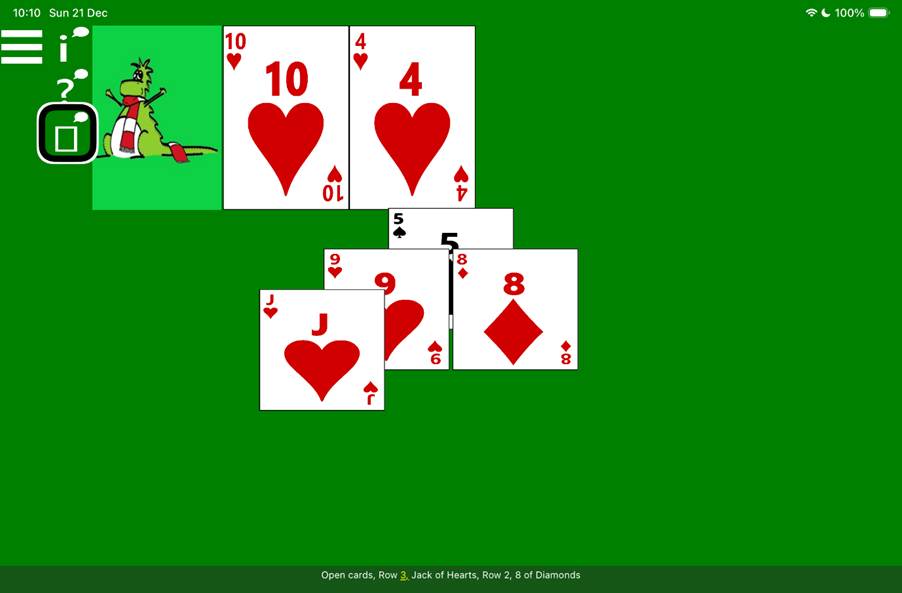
The following picture shows an in-progress game of Pyramid Solitaire, with four cards remaining in the pyramid. The VoiceOver screen reader highlighting the Open Cards buttons, and its caption shows: “Open cards, Row 3, Jack of Hearts, Row 2, 8 of Diamonds”.
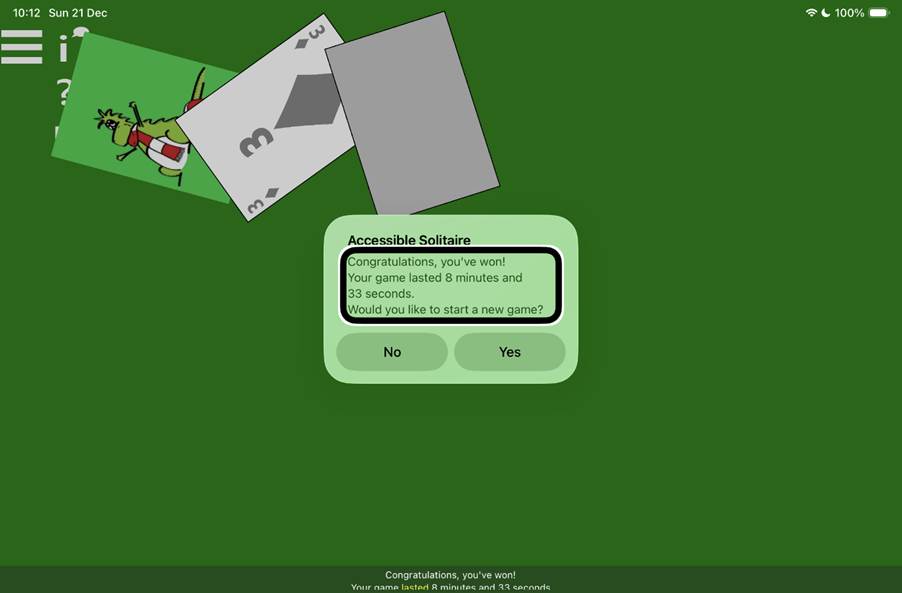
The following picture shows a won game of Pyramid Solitaire, and a window saying: “Accessible Solitaire. Congratulations, you’ve won! Your game lasted 8 minutes and 33 seconds. Would you like to start a new game?” The VoiceOver screen is highlighting the middle part of the message, and its captions shows the associated announcement.
Tip: When playing the Pyramid game with VoiceOver, you might be interested in turning on the following settings:
Show screen reader buttons. With these buttons, you can have available moves announced, and also the list of open cards.
Headings: Turn this on if you’d like the first card on each row to be a heading, to support fast VoiceOver navigation between rows.
Sounds: You might find it helpful to have a sound played when cards are successfully discarded from the pyramid. In 2026 I hope to add a range of sounds to choose from.
Audio Experience: Perhaps you’d enjoy some celebratory audio when you’ve won the game? Today you can choose from a brass fanfare or an 18th century Compton spinning mule.
Also, whenever a card is discarded from the pyramid, VoiceOver will move away from where that card was, to the card to the left on that same row, (or to the last card on the previous row if the discarded card was the first card on a row). After discarding a card, please wait for VoiceOver to announce where it has moved, before continuing to play the game. Otherwise you may manually move VoiceOver somewhere in the game, and then VoiceOver will still automatically move to the other card.
So that’s how things are at the end of 2025. Thanks to everyone who’s helped me make progress during the year, and I look forward to continuing this journey in 2026, a journey which is only possible with help from you all.
Version 3 of the Accessible Solitaire app includes the Pyramid Solitaire version of the game. To switch between the Klondike version and Pyramid version, go to the app menu and select the desired version of the game.
Important: Please note that the Pyramid version of the game is a work in progress. The game is playable today, but will be constantly improved based on feedback from players. If you have suggestions on how the game can be made more playable and more enjoyable, please do send feedback to gbarkerz@hotmail.com. Thank you!
Tip: Today the pyramid of cards shown in the game occupies most of the screen, regardless of the size of the screen. This can result in each card being thinner and taller than expected. As such, it is recommended that the game is played with the screen rotated to be in a landscape orientation.
Note: Today there’s nothing explicitly labelled “Klondike” or “Pyramid” on the screen once a game has been started. One way to quickly verify which type of Solitaire is being played is to check whether a “Waste pile” follows the Next Card button near the top left of the screen.
Playing the Pyramid Solitaire game
When the game starts, 28 cards are laid out to form a pyramid, with one card in the first row down to seven cards in the bottom row. Initially all card in rows 1 to 6 are partially covered by two cards in the next row. The remaining 24 cards are in a pile which lie face down below a Next Card button near to the top left corner of the app.
When the Next Card button is clicked, the top card in the remaining pile is turned up, and becomes the upturned card to the right of the Next Card button. Whenever the Next Card button is clicked, if there is already an upturned card, that upturned card is moved to the top of the waste Pile, which lies between the Next Card button and the upturned card.
The goal of the game is to discard all the cards in the pyramid. A card in the pyramid can only be discarded if it is not partially covered by any other cards.
Cards can be discarded from the game in the following ways.
Select a card in the pyramid, or the upturned card, or the card at the top of the waste pile, when that card is a King. Note that the values of the Ace, Jack, Queen, and King cards are 1, 11, 12, and 13 respectively.
Select two cards in the pyramid and the total value of the two cards is 13.
Select both the upturned card and the card at top of the waste pile, when the total value of the two cards is 13.
When a card is discarded from the pyramid, keyboard focus moves to the previous card in the pyramid.
Note: A future version of the game will include an option to say that the game is only won once all the cards in the pyramid have been discarded, and also all the other cards have been discarded.
Note: Currently no game settings have been added to the Accessible Solitaire app which are specific to the Pyramid version of the game, but some of the existing settings apply to both the Klondike version and Pyramid version.
Note: If the app settings related to the colours of the suits shown on the cards, or the timeout for the zooming of the card, are changed, the app needs to be restarted before the changes take effect.
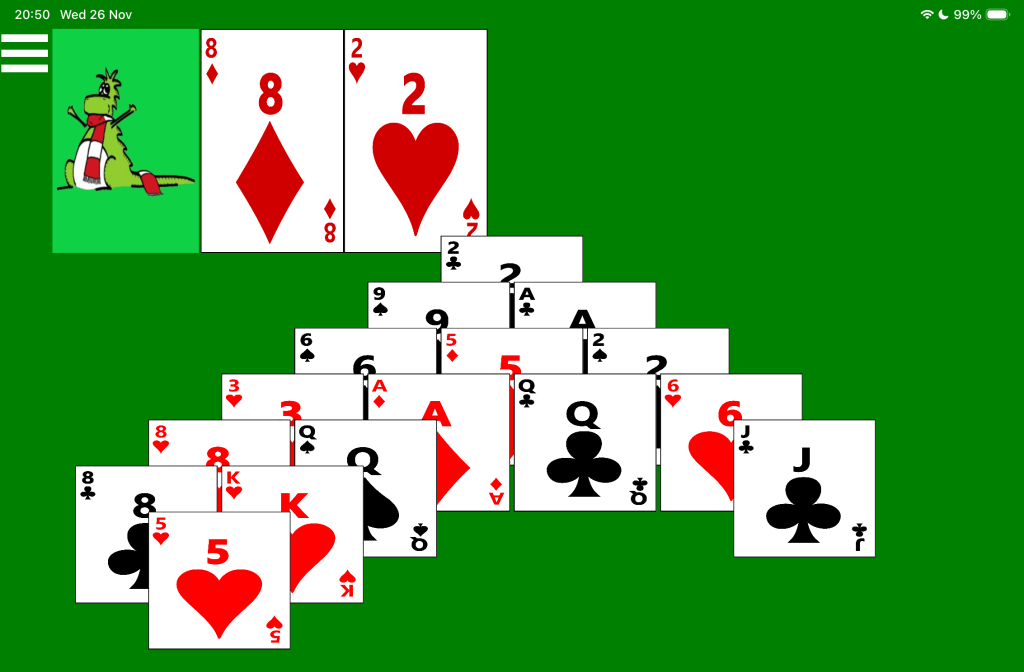
The following image shows in-progress game of Pyramid Solitaire, with multiple cards from the lower rows having been discarded. The upturned 2 of Hearts is shown next to the 8 of Diamonds on top of the waste pile.
The following image shows a game of Pyramid Solitaire having been won. No cards are shown in the pyramid, the remaining cards are spinning, and a popup window says: “Congratulations, you’ve won! Would you like to start a new game?”
Keyboard usage (Windows only)
A press of Tab of Shift Tab will move keyboard focus to the next or previous element in the game, including adjacent cards in the pyramid. A press of Left or Right Arrow will perform the same navigation in many places in the game. If keyboard focus is on a card in the pyramid, a press of the Up or Down Arrow will move keyboard focus to the first card on the preceding of following row in the pyramid.
Important: There are many more efficiencies that could be added to the keyboard experience. For example, use of Home and End, or a keyboard shortcut that moves keyboard focus to a card that can be discarded. Feedback from players will help prioritise improvements in this rea.
Voice Control usage (iOS only)
To select a card, say “Tap” followed by the name of the card to be selected. For example, “Tap 3 of diamonds”. To turn over the next card in the remaining cards pile, say “Tap next card”. Once there are no more cards shown in that remaining card pile, say “Tap turn over cards” to have all the upturned cards turned back over.
Using a Screen Reader
A screen reader announces the name of whatever it encounters in the game. These announcements include the following:
“Menu, Button”
“Next card, Button”
“Waste pile, no card, Button”
“7 of Hearts on waste pile”
“No upturned card, Button”
“6 of Diamonds upturned”
For cards in the pyramid, announcements are of the form:
“King of Spades, row 4, 2 of 4”
“8 of Clubs, Open, row 7, 6 of 7”
If the announcement of a card in the pyramid includes the word “Open”, then the card is not partially covered by any other cards, and so the card can be selected. If a card has been selected in preparation for it being discarded, the screen reader will announce the card as being selected.
The screen reader can be moved directly to an element in the game by touching the element, or by swiping right or left to have the screen reader move to the next or previous element respectively.
Note: When the cards in the pyramid are first laid out, there is a slight gap between the cards in a row. This means as you move your finger along the cards in a row, the name of the cards on another row showing slightly through the gap will also briefly be spoken.
Note: To have the first card in each row be a heading, turn on the Headings setting in the Settings page. Once the first card on each row is a heading, if the screen reader is located at a card in the pyramid, the screen reader’s heading navigation can be used to quickly move to the first card in the preceding or following row.
The screen reader also announces details in response to some specific actions that are taken in the game. For example:
After clicking the Next Button and a card is turned up: “9 of Diamonds on top”.
When selecting a card: “3 of Clubs, selected”.
After clicking a King in the pyramid: “Discarded King of Hearts”.
After selecting a pair of cards in the pyramid: “Discarded 6 of Clubs and 7 of Hearts”.
After selecting a card in the pyramid and the upturned card: “Discardws 4 of Spades upturned and 9 of Clubs”.
When a card in the pyramid of cards is discarded, if VoiceOver was located at that card, then VoiceOver will move to the card to the left of the discarded card.
Important: When a move involves discarding one or more cards from the pyramid of cards, there is a two second delay before VoiceOver’s announcement confirming that the cards were discarded. During this delay, an announcement relating to VoiceOver moving to another card may have begun and if so, will get interrupted.
Important: When swiping left or right while iOS VoiceOver is at a card in the pyramid, VoiceOver will move to an adjacent card in the row. However, when using Android TalkBack, TalkBack takes a diagonal path through the pyramid. This is a confusing path, and I’m searching for a robust solution to this.
Announcing the entire state of the game: To have the current state of the entire game announced by the screen reader, go to the Settings page and check: “Show screen reader buttons”. When you then return to the game, a button called: “Game state” will follow the Menu button near the top-left of the game. When that button is tapped, the screen reader will announce the current state of the upturned cards, the target card piles, and the dealt card piles. For example:
“Upturned card is 5 of Clubs, Top of waste pile is Ace of Spades. More cards are available to turn over. Row 5, 9 of Hearts, Row 4, 10 of Clubs, Row 3, 10 of Diamonds, Queen of Spades, Row 2, 2 of Hearts, 3 of Hearts, Row 1, 4 of Hearts”
The optional screen reader buttons also include the “Available moves” button, which will have the screen reader announce any moves that are currently available in the game. For example: “2 of Hearts Row 6 and Jack of Diamonds Row 6 can be discarded together, 2 of Diamonds Row 6 and Jack of Diamonds Row 6 can be discarded together, King of Spades Row 6 can be discarded”.
Note: The announcements relating to available moves only involves those moves which involve a card in the pyramid of cards. So moves which only involve the upturned card and the card at the top of the waste pile will not be announced.
Tip: For a more efficient game-playing experience, turn on the screen reader Automatic announcements setting. This will result in the screen reader announcing all available moves after some action is completed in the game, if any such moves are available.
Tip: When using the iOS VoiceOver screen reader, turn off the VoiceOver “Text Recognition” setting to prevent VoiceOver attempting to recognise any text shown on the cards and announcing that text in addition to the name of the card.
Tip: When using the iOS VoiceOver screen reader, turn on the VoiceOver “Switch Dynamic Areas and Announcements” feature.
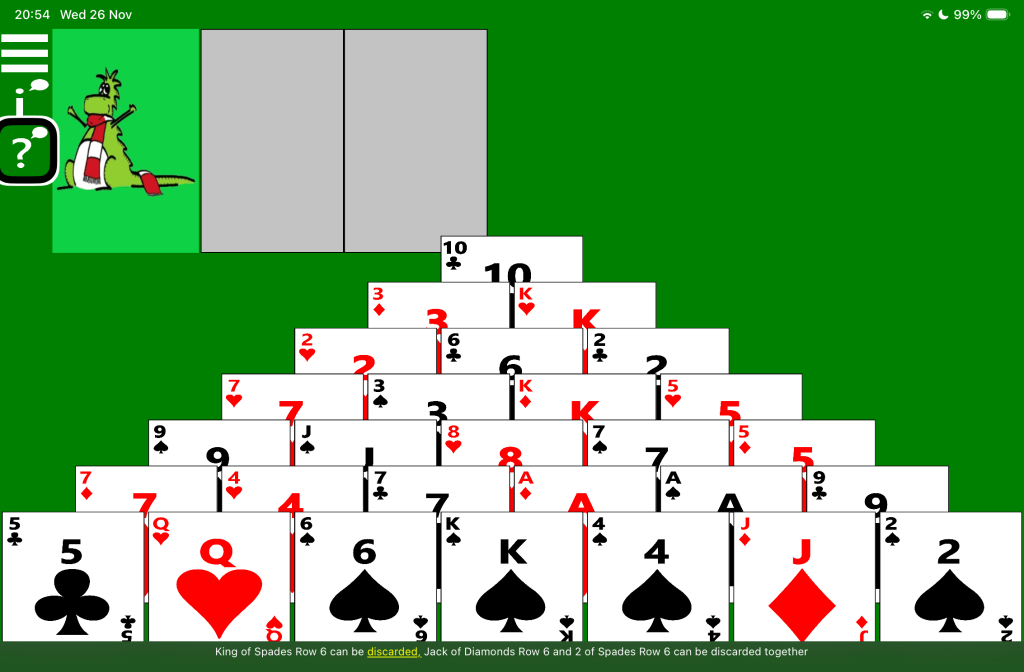
The following image shows a new game of Pyramid Solitaire. The Voice Over screen reader is highlighting the “Available moves” button, and its caption shows: “King of Spades Row 6 can be discarded, Jack of Diamonds Row 6 and 2 of Spades Row 6 can be discarded together”.
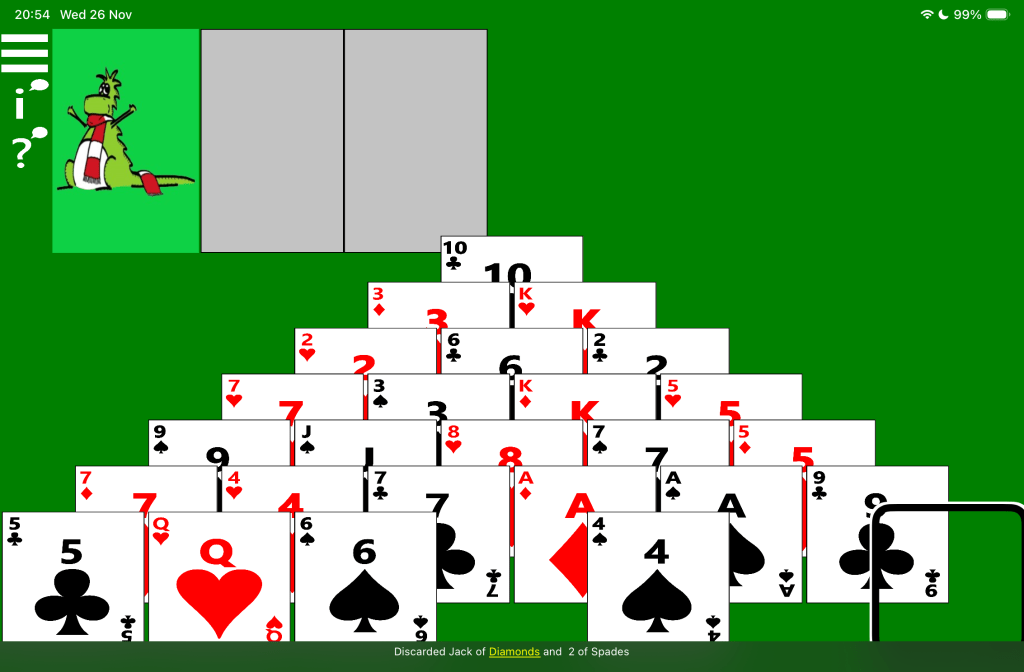
The following image shows an in-progress game of Pyramid Solitaire. The Voice Over screen reader is highlighting the position of a newly-discarded card, and its caption shows: “Discarded Jack of Diamonds and 2 of Spades”.
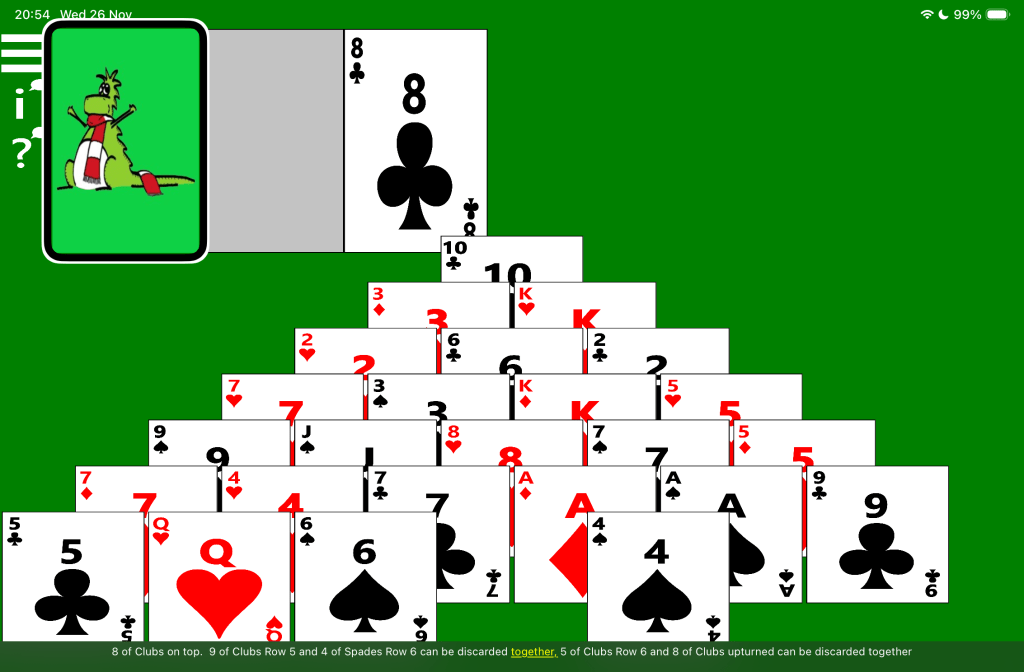
The following image shows an in-progress game of Pyramid Solitaire. The Voice Over screen reader is highlighting the Next Card button, and its caption shows: “8 of Clubs on top. 9 of Clubs Row 5 and 4 of Spades Row 6 can be discarded together, 5 of Clubs Row 6 and 8 of Clubs upturned card can be discarded together”.
The Accessible Solitaire game is an exploration into building the most accessible solitaire game possible for devices running any of iOS (like iPhones and iPads), Android, or Windows.
Today the game focuses on the experiences for players who use zoom features, screen readers, switch devices, or speech to play their games. The game can always be made more accessible, so please provide feedback to help me learn how I should prioritise its accessibility improvements.
Please note that the Windows version of the game focuses on playing the game using only the keyboard, both with and without a screen reader running. The iOS and Android versions of the app explore the touch experience, and have not been tested with keyboard use.
Some technical details relating to building the app are shared at Barker’s Articles.
Short videos demonstrating some of the ways that Accessible Solitaire can be played are referenced below. Please note that currently these videos do not have captions or audio descriptions.
The goal of the game is to build up four piles of playing cards, one per suit, in the target card piles shown near the top right of the game. The piles must be built up in order, starting with an ace and ending with a king.
Please note: When moving a card, first tap the card to be moved and then tap the place where you’d like the card to go. Do not try dragging cards around the game.
Please note: The “Next card” button is used to turn over cards from a pile of face-down cards near the top left corner of the app. The button does not show any text on it, rather it shows a picture of the Herbi cartoon character wearing a scarf.
Seven dealt card piles are shown along the bottom half of the game, with the left-most pile having only one card, and each pile then containing one more card, up to the right-most card pile which contains seven cards. Only the last card in each dealt card pile is shown face-up, and all the other cards in the pile are face-down.
The last card in a pile can be moved to a target card pile if it continues the order of the cards being added to the target card pile. For example, a 2 of Hearts in a dealt card pile can be moved on top of an Ace of Hearts in the Hearts target card pile. An Ace is always the first card to be moved to a target card pile.
Face-up cards in dealt card piles can also be moved to lie on top of the last card in another dealt card pile if the card being moved is one number lower than the card on which it is being placed, and the cards are not the same colour. For example, a 3 of Clubs in one dealt card pile could be moved to lie over a 4 of Diamonds if the 4 of Diamonds is the last card in another dealt card pile.
The remaining playing cards in the deck are placed face-down near the top-left of the game. The top card in that pile can be tapped and either one, two, or three face-down cards in the pile will be turned face-up next to the pile. The number of cards turned up depends on your current game settings. The top-most card turned up can then be moved to either a target card pile or the end of a dealt card pile with the same rules as when moving dealt cards to either a target card pile or another dealt card pile. Once all cards have been turned up, tap on the button again to have all the remaining cards turned face-down to work through them again.
In addition to being able to move cards from the remaining card pile to the target card piles or dealt card piles, or from the dealt card piles to the target card piles or another dealt card pile, you may sometimes choose to move a card from a target card pile back down to a dealt card pile. Such a move is not common, but can be useful at times.
Cards are moved from the upturned card pile, or the dealt card piles, until all four target card piles have been built up and the game is won. If it is not possible to make any more moves which help to build up the target card piles, the game cannot be won and you would restart the game.
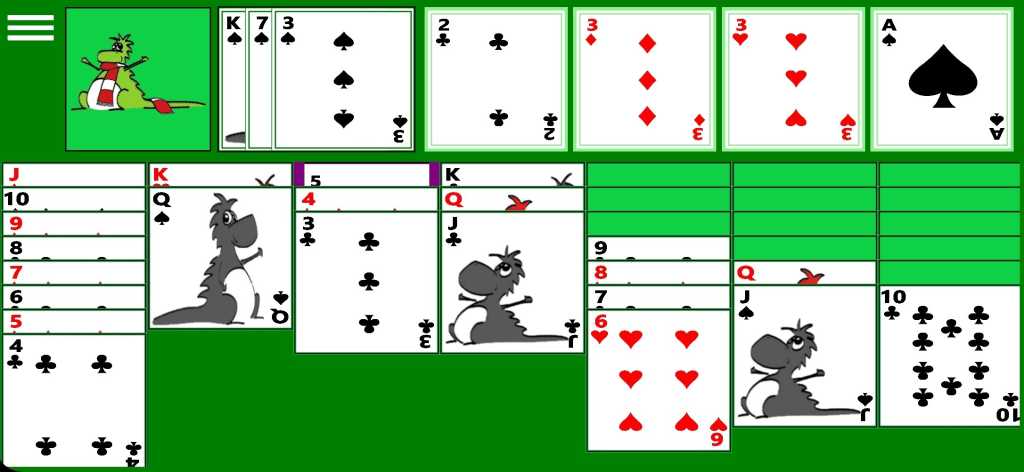
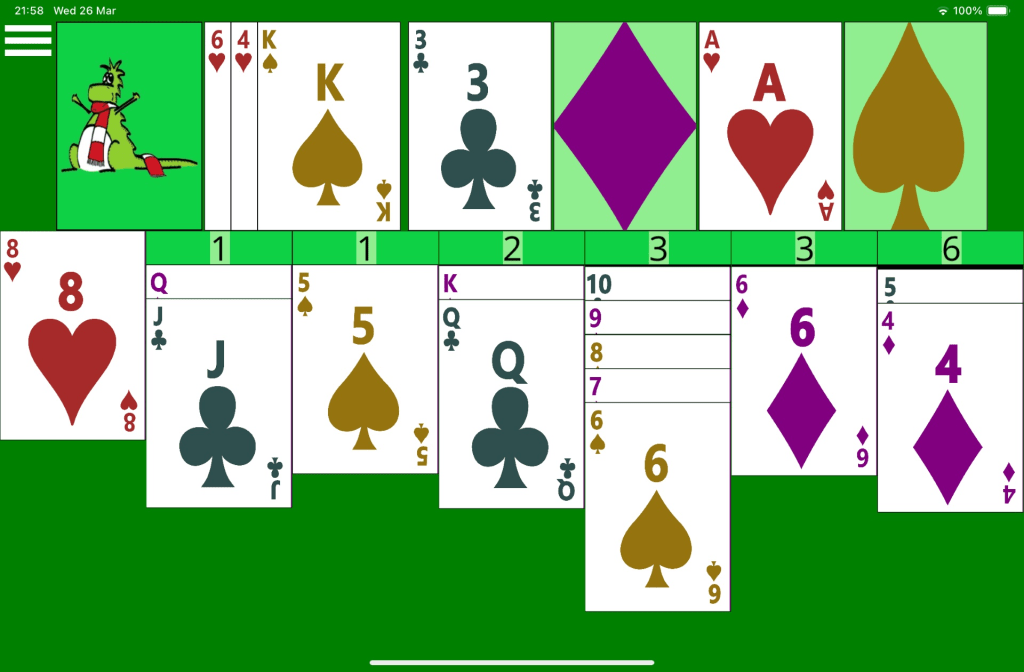
Figure 1: A solitaire game running on iOS with various cards moved between the three main areas of the game.
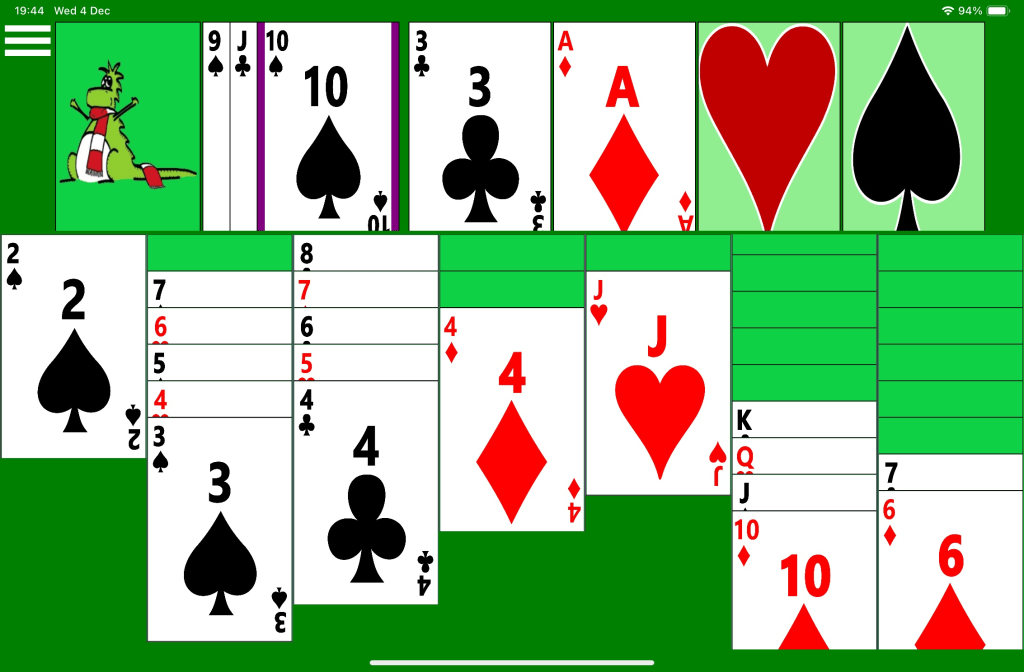
Figure 2: A solitaire game running on Android with various cards moved between the three main areas of the game.
Differences between Version 1 and Version 2 of Accessible Solitaire
Based on feedback, a number of features have been added to version 2.
Important: The help content below has yet to be updated to describe these new features in detail. It is hoped that the help content will be updated before too long with more details about the new features.
These new features are:
A long press on a card to show a zoomed popup of the card. Note that this long press gesture currently does not work if a screen reader is running.
A setting to have the current state of the game saved, so that when you next start the app, the game can be continued. By default, the state of the game is saved between sessions.
The setting to have screen reader-related buttons shown in the app now includes a button to have available moves announced by the screen reader. Please note that the announcement does not include moves of cards to empty dealt card piles, or moves of cards from the target card piles down to the dealt card piles.
(iOS and Android only) A setting to have available moves announced automatically whenever a move is completed.
(iOS only) The top upturned card and all target card piles are headings, enabling more efficient VoiceOver screen reader navigation.
A setting to include a hint for the screen reader when the screen reader navigates to the top-most card in a dealt card pile. The hint relates to the first face-up card in that pile.
A setting to have the names of face-down playing cards in the dealt card piles included in the announcement when a screen reader announces the current state of the game.
Settings relating to having sounds played in response to specific actions in the game.
Settings relating to having audio played or the target cards visually spin when a game is won.
Other features and setting in the game are described in detail below.
Size of things shown in the game
The game has three features which can help make the contents of cards easier to see.
Card rank and suit display
A setting in the app can be used to have the content of playing cards be similar to those of traditional playing cards, such that the main area shows a collection of small suit symbols. A collection of small symbols can make determining exactly which suit is being shown challenge, given that the clubs and spade symbols are very similar, as are the diamonds and hearts symbols. A such, a “Card rank and suit display” setting provides a way to have the card not show the traditional collection of symbols, and instead show one large number (or letter) to indicate the card’s rank, and one large suit symbol. By default, the “Card rank and suit display” setting is on.
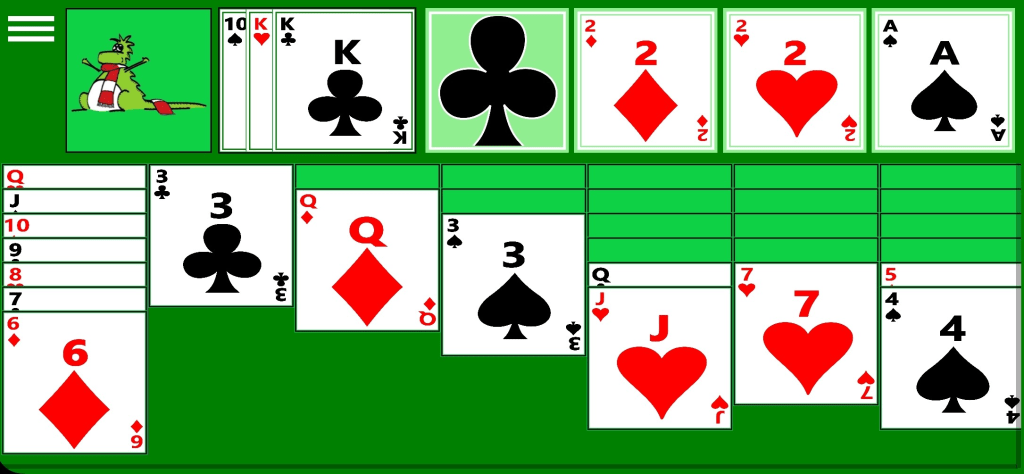
Figure 3: A solitaire game running on iOS, with all cards showing a large number or letter indicating the card’s rank and a large suit symbol.
Figure 4: A solitaire game running on Android, with all cards showing a large number or letter indicating the card’s rank and a large suit symbol.
Show a playing card in a zoomed popup
If a player places their finger on a playing card of interest, and leaves their finger on the card for a specific time, a zoomed version of the card will popup. To dismiss the popup, either tap its Close button, or tap outside the popup. The time required for the popup to appear when a finger is on the card can be adjusted with the “Press and hold on card to zoom” setting, and this setting can also be used to never show the zoom popup.
Figure 5: A solitaire game running on iOS, with a large popup window showing a 3 of Spades card, with the rest of the game greyed out in the background.
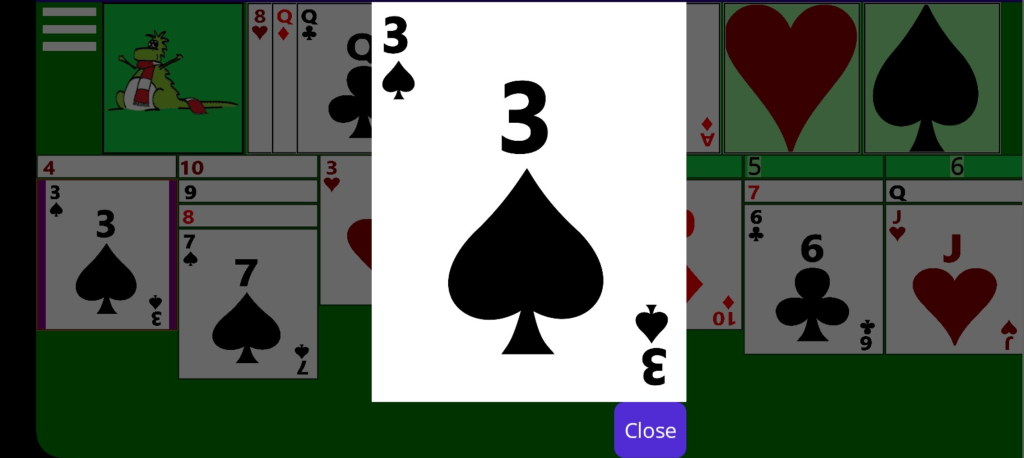
Figure 6: A solitaire game running on Android, with a large popup window showing a 3 of Spades card, with the rest of the game greyed out in the background.
Changes the colours used for suits
By default, the colours of suits are the traditional playing card colours, those being black clubs, red diamonds, red hearts, and black spades. Having the same colours used for different suits can make it a challenge to differentiate clubs from spades, and diamonds from hearts. So a setting can be used to change the colours used for each suit.
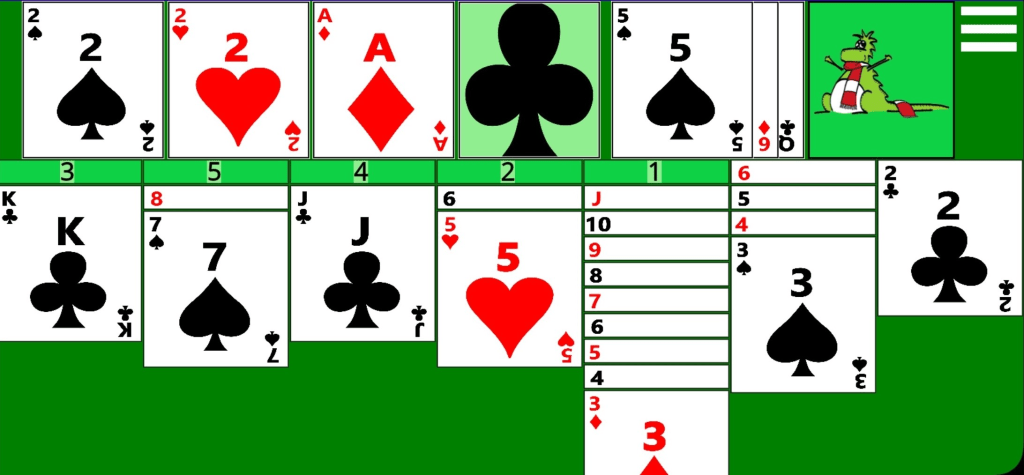
Figure 7: A solitaire game running on iOS, with the following suit colours: Clubs black, Diamonds red, Hearts dark red, Spades dark blue.
Figure 8: A solitaire game running on iOS, with the following suit colours: Clubs dark green, Diamonds dark gold, Hearts dark indigo, Spades dark gold.
Using a switch device (iOS Switch Control or Android Switch Access)
When playing Accessible Solitaire with a switch, please consider the following:
At the Accessible Solitaire Settings page, turn on “Merge face-down cards”. This reduces the number of switch presses required before reaching dealt cards of interest.
Android: Set the Android Switch “Default scan method” setting to “Group”. This reduces the number of switch presses required when moving to a group containing a card of interest.
When a card of interest is selected using a switch, the a menu of actions may appear, and another switch press is then required to tap the card. If you’d prefer a card to be tapped automatically when selected, change the device’s Switch settings to have the card tapped with a single click of the switch. Also consider reducing the delay before the auto-tap occurs after the card is selected.
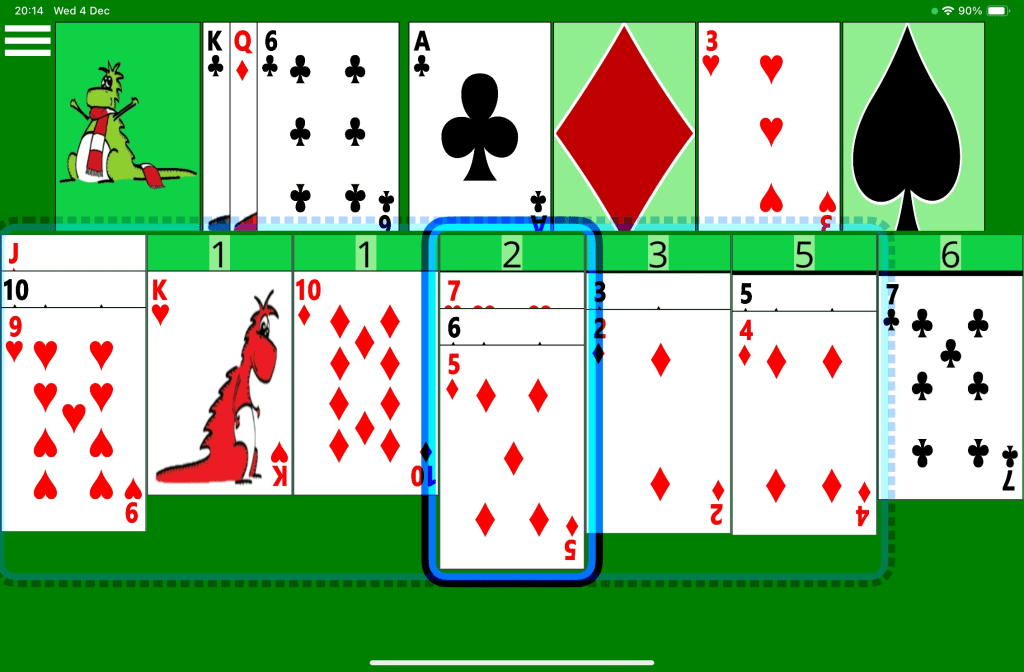
Figure 9: A solitaire game running on iOS, with Switch Control faint highlighting 6 of the 7 dealt card piles and strong highlighting the entire fourth dealt card pile.
Figure 10: A solitaire game running on Android, with Switch Access highlighting the entire set of the 7 dealt card piles.
Using speech (iOS Voice Control only)
Important: At the time of writing this, Android Voice Access cannot be used to play the Accessible Solitaire game.
Phrases that are commonly used in the game are: “tap”, followed by one of the these:
The name of a card. For example: “three of diamonds”.
“next card”, to turn over the next card in the remaining cards pile.
“turn over cards”, when the remaining card pile is empty and all upturned cards are to be turned back over.
The name of an empty target card pile. For example: “clubs pile” or “hearts pile”.
The name of an empty dealt card pile. For example: “pile one” or “pile seven”.
Figure 11: A solitaire game running on iOS, with Voice Control showing names by all interactable elements.
Using a Screen Reader
A screen reader announces the name of whatever it encounters in the game. For example:
“Menu, Button”
“Next card, Button”
All cards in the upturned card piles or target card piles behave like buttons, whose names include the word “selected” if the card has been selected in readiness to move the card. For example, if the Ace of Clubs is shown in the Clubs target card piles, a screen reader will say either “Ace of Clubs, button” or “Ace of Clubs, selected, button”.
When the screen reader encounters a card in one of the dealt card piles, it announces the details of the card. The details always include the rank and suit of the card if the card is face-up, or the phrase “Face down” if the card is face-down. The details also include the position of the card in the dealt card pile, the count of cards in that pile, and whether the card is selected. For example: “10 of Diamonds, selected, 3 of 4”. The screen reader might also announce which dealt card pile the card is in, as either its “dealt card pile” or “list pile”.
The screen reader can be moved directly to an element in the game by touching the element, or by swiping right or left to have TalkBack move to the next or previous element respectively. When navigating forward by swipe gesture, TalkBack will announce the container of the dealt card piles as: “Dealt card piles”.
The screen reader also announces details in response to some specific actions that are taken in the game. For example:
When selecting a card in a dealt card pile: “3 of Clubs, selected, 3 of 3 in dealt card pile 3”.
When a card has been moved from a dealt card pile up to a target card pile, and the next card in the pile is turned face-up: “Moved Ace of Hearts, Revealed Jack of Diamonds, 4 of 4 in dealt card pile 5”.
When the Next Card button is tapped and two cards are turned over: “5 of Hearts, 6 of Spades on top”.
When the Next Card button is tapped and the pile becomes empty: “9 of spades, 3 of Diamonds on top. No cards left in remaining cards pile”.
When the topmost upturned card is selected: “3 of Diamonds selected”.
Announcing the entire state of the game: To have the current state of the entire game announced by the screen reader, go to the Settings page and check: “Show state announcement button”. When you then return to the game, a button called: “Screen reader announce game state” will follow the Menu button near the top-left of the game. When that button is tapped, the screen reader will announce the current state of the upturned cards, the target card piles, and the dealt card piles. For example:
“Top upturned card is 6 of Clubs, then 9 of Diamonds, then 4 of Clubs. More cards are available to turn over. Target piles, 2 of Clubs, 2 of Diamonds, Ace of Hearts, Empty Spades Pile. Pile 1, 10 of Hearts to King of Spades, Pile 2, Empty, Pile 3, 8 of Clubs, 2 Cards Face-down, Pile 4, 10 of Spades to Jack of Diamonds, 2 Cards Face-down, Pile 5, 7 of Clubs, 4 Cards Face-down, Pile 6, 4 of Diamonds, 1 Card Face-down, Pile 7, 5 of Diamonds, 6 Cards Face-down.”
Extend dealt card hit targets: This setting only applies using a portrait screen orientation. When turned on, the hit target for each of the topmost dealt cards extends across the width of the screen. The hit target is represented by a solid colour, and the dealt card appears in the middle of the area. Extending the hit target area may make it quicker to find the topmost card in each pile when moving your finger over the screen while using a screen reader.
Note: When using the Android TalkBack screen reader, the screen reader will move to the three containers associated with the upturned cards pile, the target card piles, and the dealt card piles, and announce their names in addition to moving to the cards contained inside those groups. When using the iOS VoiceOver screen reader, the screen reader only moves to the cards, and does not move to the three containers.
TIP: When using the iOS VoiceOver screen reader, turn off the VoiceOver “Text Recognition” setting to prevent VoiceOver attempting to recognise any text shown on the cards and announcing that text in addition to the name of the card.
TIP: When using the iOS VoiceOver screen reader, turn on the VoiceOver “Switch Dynamic Areas and Announcements” feature.
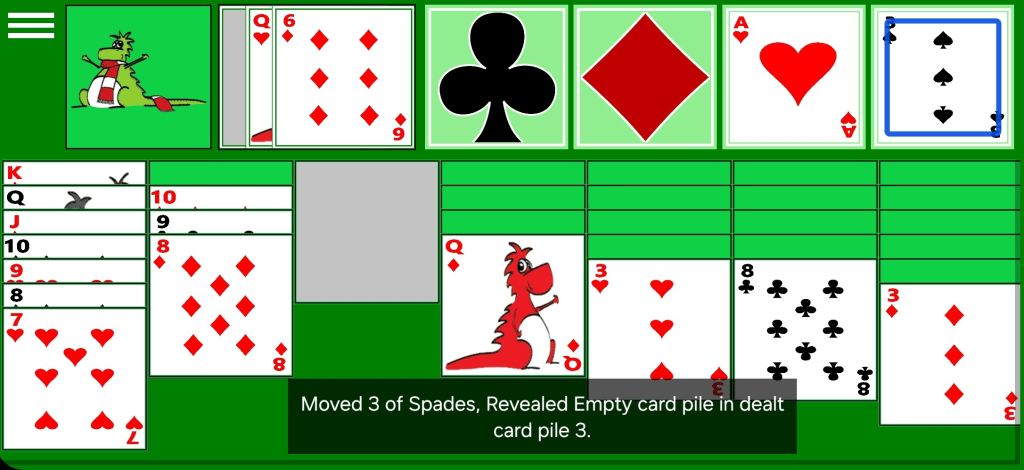
Figure 12: A solitaire game running on iOS, with VoiceOver highlighting the 3 of Spades and its caption showing an announcement relating to a move.
Figure 13: A solitaire game running on iOS, with VoiceOver highlighting the Jack of Spades and its caption showing an announcement relating to a move.
Figure 14: A solitaire game running on iOS, with VoiceOver announcing the entire state of the game.
Figure 15: A solitaire game running on Android, with TalkBack highlighting the 8 of Clubs and its caption showing an announcement relating to a move.
Figure 16: A solitaire game running on Android, with TalkBack highlighting the 3 of Spades and its caption showing an announcement relating to a move.
Figure 17: A solitaire game running on Android, with TalkBack announcing the entire state of the game.
Please note: The screen readers sometimes makes announcements that are not helpful and can be confusing. For example, various transitioning selection states of a card being moved before it announces the card’s final selection state. Also when a card is being moved and the screen reader announces the position of a card in a pile and the count of cards in that pile, sometimes those details do not relate to the card of most interest during a move. Over time I hope to reduce the number of unwanted announcements made by the screen reader.
Please note: When the screen reader is not running, a selected card in a dealt card pile can be tapped to deselect it. When the screen reader is running, a selected card does not respond when a double-tap gesture is made on the card. To deselect that card, double-tap on another card.
Colours shown in the game
The colours shown in the game depend on whether the device’s ** Dark Mode** setting is on when the game is started.
Figure 18: A solitaire game running on iOS with its Dark Mode colours shown.
Figure 19: A solitaire game running on Android with its Dark Mode colours shown.
Other Settings
“Number of cards turned up” and “Empty Dealt Card Pile”
The game has two settings which can influence how challenging it is for the game to be won. One of those settings, “Number of cards turned up”, controls how many cards are turned over from the remaining card pile when the Next Card button is tapped. If cards are turned up one at a time, the game is more likely to be won, but if the cards are turned up three at a time, you may find it less common for the game to be won. The other setting, “Empty Dealt Card Pile”, controls what cards can be moved to empty dealt card piles. If this is set such that any card can be moved to an empty dealt card pile, the game is more likely to be won, and the game is less likely to be won if only Kings can be moved to an empty dealt card pile.
Merge face-down cards
Given that all the face-down cards in the dealt card piles can occupy a lot of space in the game, you may prefer to have only one face-down card shown in each dealt card pile if the pile has any face-down cards. By choosing this option, only one face-down card is shown in each dealt card pile, and the total number of face-down cards in the associated pile is shown on that face-down card.
Note: This option might be particularly interesting when playing the game with the screen reader or switch device. By default when swiping to move the screen reader through a dealt card pile, the screen reader will move to each face-down card in turn before it reaches the face-up cards in the pile. By merging all the face-down cards, the screen reader will encounter the one face-down card shown, announce the count of face-down cards, then with the next swipe will move to the first face-up card in the pile. Note that when the screen reader moves to the lowest face-down card in the pile, it will always announce the count of face-down cards in that pile regardless of whether the face-down cards are merged. Similarly, merging the face-down cards also means that when a switch device is being used to scan through all the cards, it takes less time to reach the face-up cards of interest.
Note also that when the screen reader announces the position of a card in a dealt card pile and the total count of cards in the pile, it will announce details as if the face-down cards are not merged.
Figure 20: A solitaire game running on Android with the face-down cards in each dealt card pile merged into a single face-down card.
Figure 21: A solitaire game running on iOS with the face-down cards in each dealt card pile merged into a single face-down card.
Flip layout horizontally
The “Flip layout” setting flips the layout of all things in the app horizontally. This might be helpful for players who prefer the Next Card button to be near the top right of the screen rather than the top left.
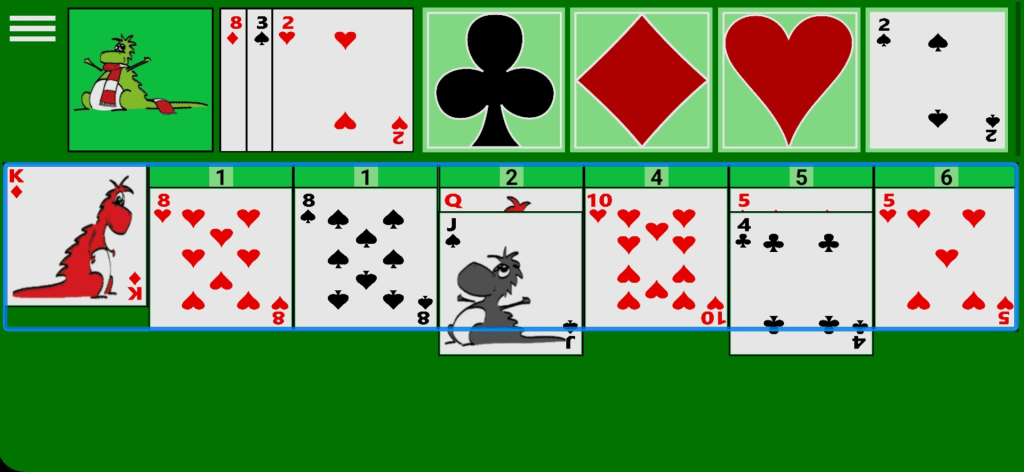
Figure 22: A solitaire game running on iOS with the layout of the game flipped horizontally.
Figure 23: A solitaire game running on Android the layout of the game flipped horizontally.
Select via face-down card
Often when selecting a partially obscured card in a dealt card pile, the card of interest is the lowest face-up card in the pile. Given that that card can be difficult to tap on due to the amount of card that’s shown, the “Select via face-down card” option means a tap on any face-down card in a dealt card pile will select or deselect the nearest face-up card in the same pile. This will often make it less challenging to select the lowest face-up card in a dealt card pile. The option is on by default.
Screen orientation
The solitaire game will automatically change its layout to support either landscape or portrait screen orientation.
Figure 24: A solitaire game running on Android in a portrait screen orientation.
Accessible Solitaire for Windows
The Windows app currently focuses on the game experience when using the keyboard, and not using other types of input at the device. Of particular interest is the screen reader experience when playing the game.
The announcements made by a screen reader are the same (or very similar) to those made by screen readers when then game is played on an Apple device or Android phone.
Navigation
The standard use of the Tab key and Arrow keys are used to navigate through the game. That is, a press of Tab (or Shift Tab) moves keyboard focus forward (or backward) through the elements in the game, and when keyboard focus is in a Dealt Card Pile, a press of the Up or Down Arrow moves keyboard focus up or down the items in the Dealt Card Pile.
Please note that while keyboard focus shows as a large border around the focused element in most places in the game, it appears as a thin border around the card in the Dealt Card piles.
The following image shows an in-progress Accessible Solitaire game running on Windows. Keyboard focus is at the four of Diamonds in the Diamonds Target Card pile, and the card has a black border which is much thicker than that shown around any other card.
Figure 25: A solitaire game running on Windows with keyboard focus around the 4 of Diamonds in the Diamonds Target Card Pile.
Clicking and Selecting
When keyboard focus is at the Menu button or Next Card button, a press of Space or Enter will click the button. When keyboard focus is at a playing card anywhere in the game, a press of Space or Enter will select or deselect the card.
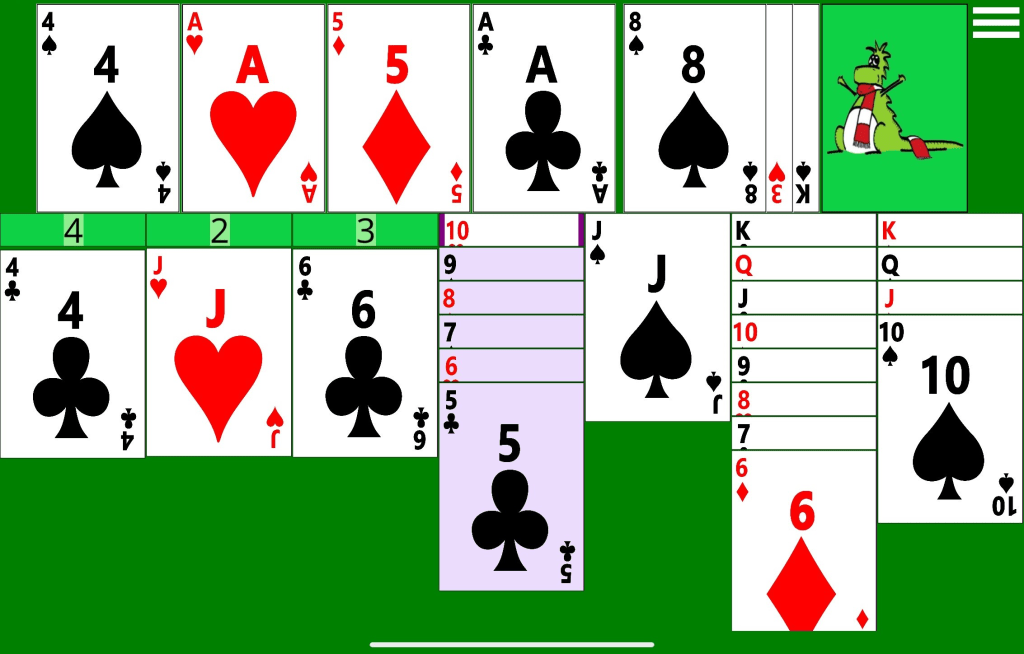
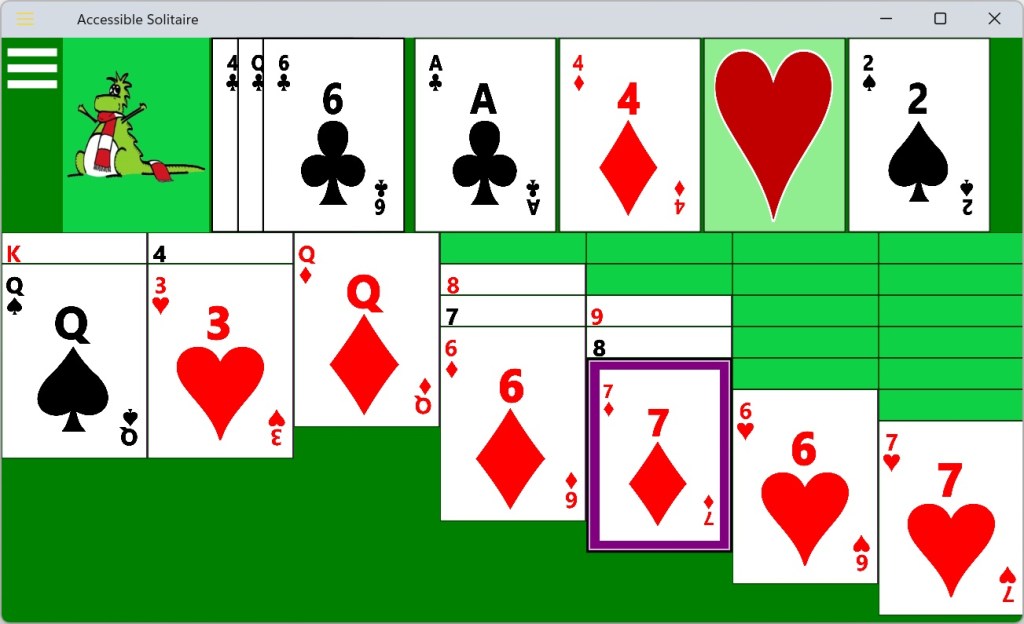
The following image shows an in-progress Accessible Solitaire game running on Windows. A thick purple border is shown around the seven of Diamonds in the fifth Dealt Card pile, indicating that this card is selected.
Figure 26: A solitaire game running on Windows with keyboard focus around the 7 of Diamonds in the fifth Dealt Card Pile.
Keyboard shortcuts
F1: Pop up a window showing a list of keyboard shortcuts.
F6 or Shift+F6: Move keyboard focus between the main areas of the game. When F6 is pressed, keyboard focus moves between the Next Card button, the Clubs Target Card pile, and the Dealt Card piles. Note that when keyboard focus is moved to the Dealt Card piles, keyboard focus does not appear until the Tab key is next pressed and keyboard focus moves to a playing card in one of the Dealt Card piles.
H: Show full help content in Facebook. N: Click Next Card button. R: Restart the game. Z: Show the zoom popup window for the playing card which currently has keyboard focus.
The following image shows a window covering most of the Accessible Solitaire game, listing all available keyboard shortcuts.
Figure 27: A solitaire game running on Windows with a popup window showing available keyboard shortcuts.
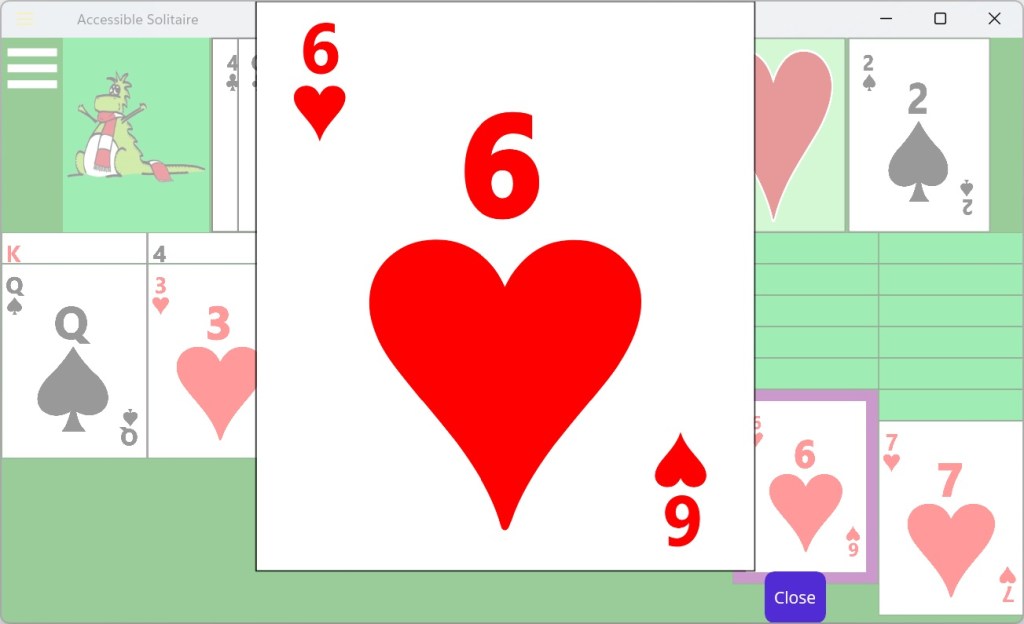
The following image shows a large Window covering approximately half the Accessible Solitaire game running on Windows. The window shows a very large version of the six of Hearts playing card.
Figure 28: A solitaire game running on Windows with a popup window showing a large version of the 6 of hearts.
Screen reader keyboard shortcuts
When the following keyboard shortcuts are pressed, the game requests that if a screen reader is running, the following screen reader announcements are to be made.
M: Announce available moves in the game. U: Announce the state of the topmost cards in the Upturned Cards pile. T: Announce the state of the Target Card piles. D: Announce the state of the Dealt Card piles.
Regarding the screen reader’s announcement of available moves in the game, those moves include moving the topmost upturned card to a Target Card pile or to a Dealt Card pile, and moving a card from the top of a Dealt Card pile to a Target Card pile, or moving the lowest face-up card in a Dealt Card pile to the top of another Dealt Card pile. While there may be other moves available in the game which are not announced, the announced moves are typically the moves of most interest.
Please also note that even if an available move is announced, that doesn’t necessarily mean that making that move can help to win the game, or even if the game can be won.
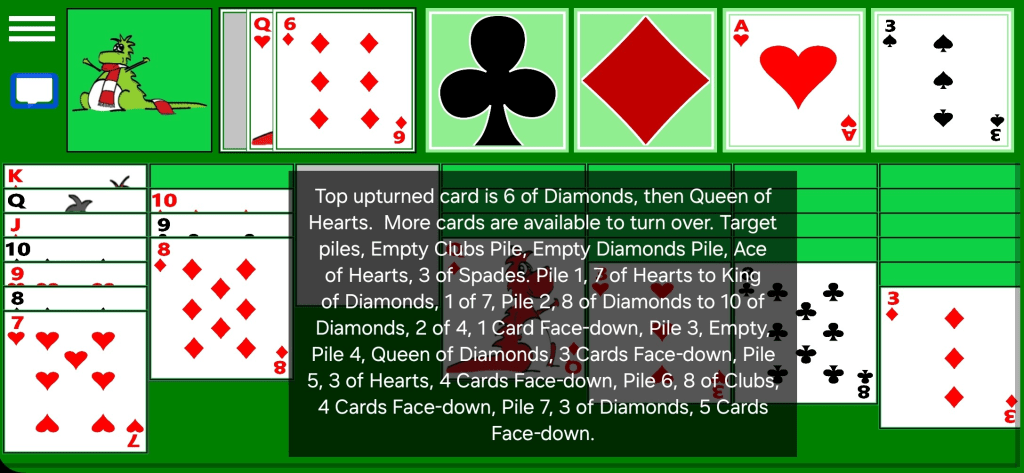
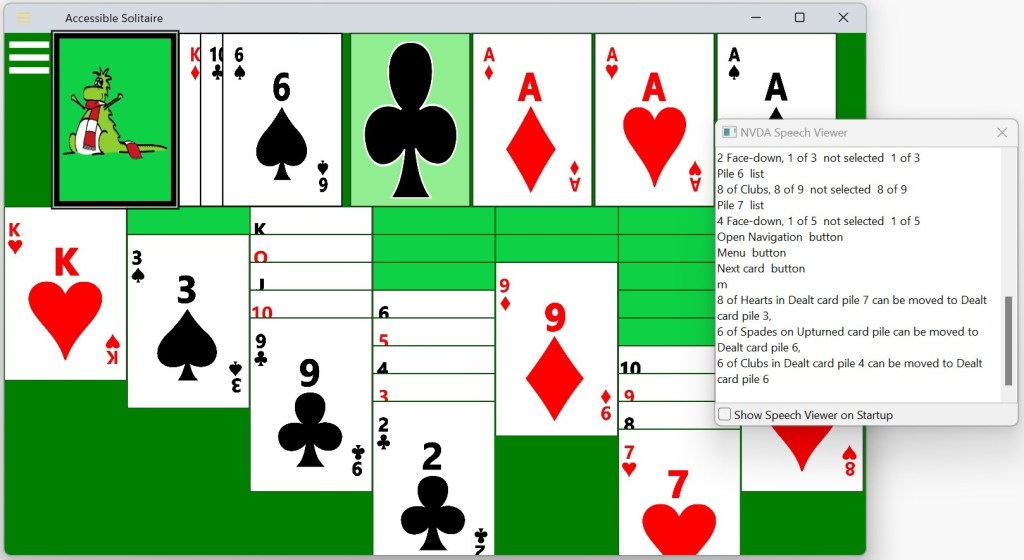
The following image shows the NVDA Speech Viewer partially covering the Accessible Solitaire game. The speech viewer shows that in response to a press of the ‘m’ key, NVDA announced: “8 of Hearts in Dealt card pile 7 can be moved to Dealt card pile 3, 6 of Spades on Upturned card pile can be moved to Dealt card pile 6, 6 of Clubs in Dealt card pile 4 can be moved to Dealt card pile 6”.
Figure 29: A solitaire game running on Windows with the NVDA screen reader’s Speech Viewer showing available moves in the game.
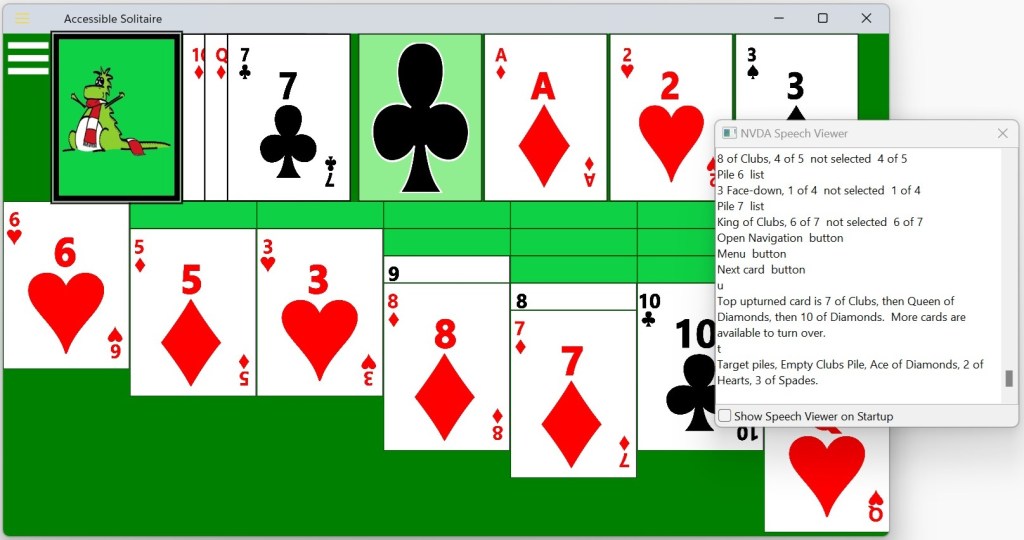
The following image shows the NVDA Speech Viewer partially covering the Accessible Solitaire game. The speech viewer shows that in response to a press of the ‘u’ key, NVDA announced: “Top upturned card is 7 of Clubs, then Queen of Diamonds, then 10 of Diamonds. More cards are available to turn over.” And in response to a press of the ‘t’ key, NVDA announced: “Target piles, Empty Clubs Pile, Ace of Diamonds, 2 of Hearts, 3 of Spades.”
Figure 30: A solitaire game running on Windows with the NVDA screen reader’s Speech Viewer showing the state of the Upturned Card Pile.
Differences between the Windows version of the game and the Apple and Android versions.
Today the Windows version has no setting to merge the face-down cards in each Dealt Card pile.
The Windows version also has no support for playing sounds in response to specific actions in the game.
The headings for settings shown on the Settings page visually appear unusually large.
The game always shows its landscape layout, regardless of whether the app window currently has a portrait orientation.











 Accessible Solitaire