To review some of the known issues in the Accessible Solitaire app, please visit: https://accessiblesolitaire.com/2026/02/18/accessible-solitaire-known-issues.
Accessible Solitaire Version 4.0 includes a new solitaire game called Spider Solitaire. This is in addition to the existing Klondike, Pyramid, Tri Peaks, and Baker’s Dozen solitaire games in the app.
If you’d like the new Spider Solitaire game updated to be made more accessible and enjoyable for you, please add your suggestions in the comments section of this post.
A game of Spider Solitaire uses two packs of 52 playing cards, making a total of 104 cards. The two packs are shuffled together, and visually, all cards shown face-down appear the same in the app.
When a game of Spider Solitaire starts, 54 playing cards are dealt out in ten dealt card piles. The first four piles contain 6 cards, and the remaining six piles contain 5 cards. The cards in the piles are arranged such that only the top card in a pile is fully shown, and the other cards in the pile only have the top part of each card shown.
Cards can be moved between the dealt cards piles by clicking any face-up card in a pile and then clicking the topmost card in another dealt card pile. The move is only possible if the rank of the first card clicked is one less than the rank of the second card clicked. Unlike the Klondike Solitaire game, the suits of the cards clicked in the Spider Solitaire game does not matter. For example, a Four of Diamonds can be moved on top of a Five of Hearts.
If the first card clicked in the moved is not the topmost card in the dealt card pile, all the cards that lie on top of the card are also moved when the clicked card moves.
Cards can be moved to an empty dealt card pile by first clicking the card to be moved, and then clicking the empty dealt card pile.
The remaining 50 cards not dealt out when the game starts are placed face-down in a pile near the top left corner of the app. If the pile is clicked, ten more cards are dealt out from the pile, with one card being placed face-up on top of each of the ten dealt card piles. Once the remaining card pile is clicked five times, all the remaining 50 cards will have been dealt out and the remaining card pile becomes empty. Once that pile is empty, no more action can be taken with the empty pile.
Note that the ten cards from the remaining card pile will not be dealt out if any of the dealt card piles are empty, and there are enough dealt cards in the ten piles to move cards into the empty dealt card piles. So if the remaining card pile is clicked when there is an empty card pile that can have a face-up card already in one of the other dealt card piles moved into it, a message will pop up to remind the player to move a face-up card into the empty card pile.
When a sequence of 13 cards in rank order, from a King down to an Ace, is formed in a dealt card pile, the 13 cards are removed from the pile and discarded. Text shown to the right of the remaining card pile near the top left corner of the app, shows the number of sequences discarded. The game is won by discarding 8 sequences, which means all the cards from the two packs have been discarded. If once all the cards in the two packs have been dealt, the cards cannot be arranged into the 8 sequences for discarding, the game is not won and the game needs to be restarted.
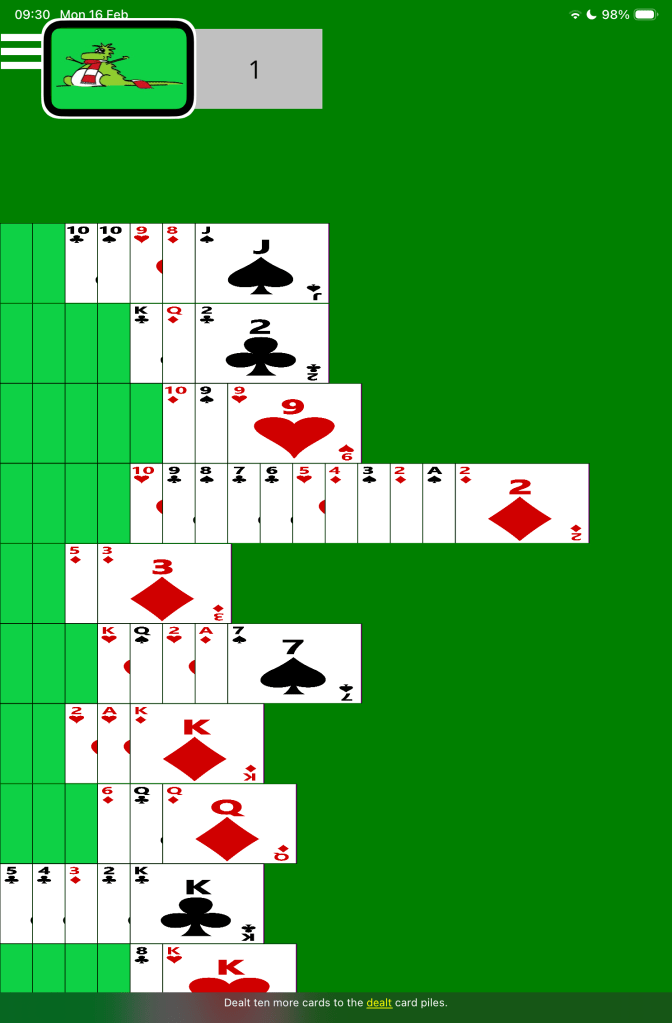
The picture below shows an in-progress game of Accessible Spider Solitaire, showing in portrait orientation on an iOS device. The VoiceOver screen reader’s highlight is at the Next Card button, and its captions shows: “Dealt ten more cards to the dealt card piles”.
Screen reader use
The game-playing experience when using a screen reader is similar to the experience when playing the Klondike game, and the same announcement is made in both games when moving cards between dealt card piles.
The button representing the pile of remaining cards near the top left corner of the app is named “Next card”, despite clicking on the button resulting in the next ten remaining cards being dealt out. The button is named “Next card” in order to keep the name consistent in all the solitaire games in the Accessible Solitaire app. When the button is clicked, a screen reader will announce: “Dealt ten more cards to the dealt card piles.”
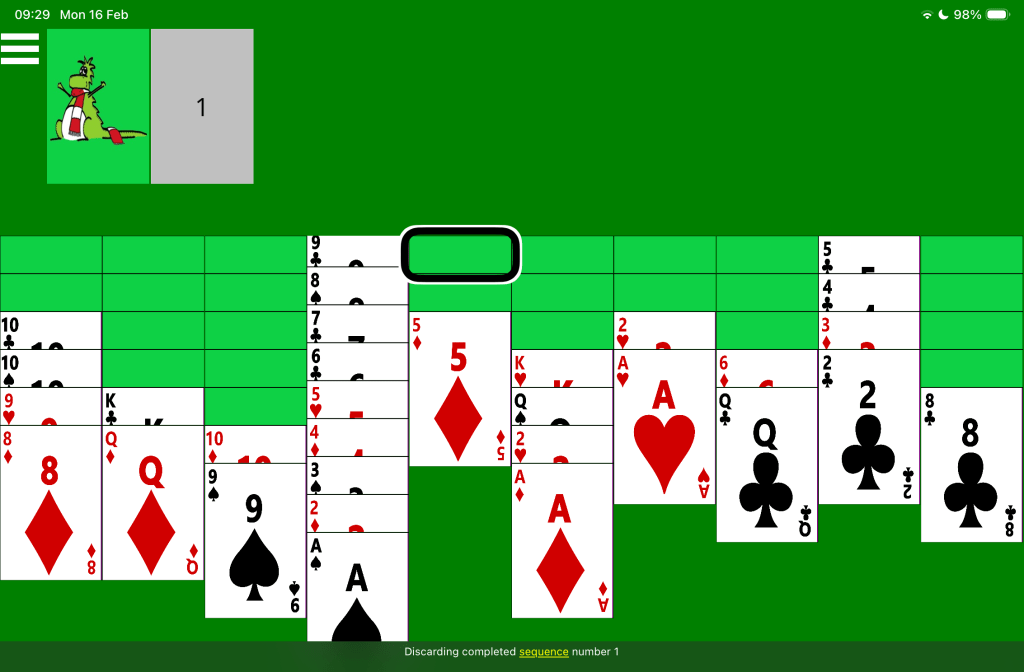
When a sequence of 13 cards is discarded from a dealt card pile, a screen reader will announce: “Discarding completed sequence number”, followed by the total number of sequences discarded, including the sequence now being discarded. For example, when the first sequence is discarded, the announcement is: “Discarding completed sequence number 1”, and when the seventh sequence is discarded, the announcement is: “Discarding completed sequence number 7”. When the 8th sequence is discarded, the related discard announcement is not heard because the message window relating to the game being won pops up and the screen reader announces details of that window.
If you find that the “Discarding completed sequence number” announcement is not made, please do let me know through the comments section of this post. In some rare cases, I’ve found the announcement relating to where the screen reader has moved can prevent the “Discarding completed sequence number” announcement from being made.
If the setting is on to show the three optional screen reader buttons, the following screen reader announcements are made when the buttons are clicked:
1. The Game State button. Announces the names of all the face-up cards in the dealt card piles, the number of discarded sequences, and whether any more remaining cards are available.
2. The Available Moves button. Announces all moves that are available between the dealt card piles.
3. The Open Cards button. Announces the topmost card in each of the dealt card piles.
The picture below shows an in-progress game of Accessible Spider Solitaire, showing in landscape orientation on an iOS device. The VoiceOver screen reader’s highlight is at a face-down card in a dealt card pile, and its captions shows: “Discarding completed sequence number 1”.
Speech input
To click a card in a card pile, say “Tap” followed by the name of the card. For example, to move a 4 of Diamonds onto a 5 of Hearts, say: “Tap four of diamonds”, followed by: “Tap five of hearts”. To turn over the next ten cards from the remaining cards pile, say: “Tap next card”.
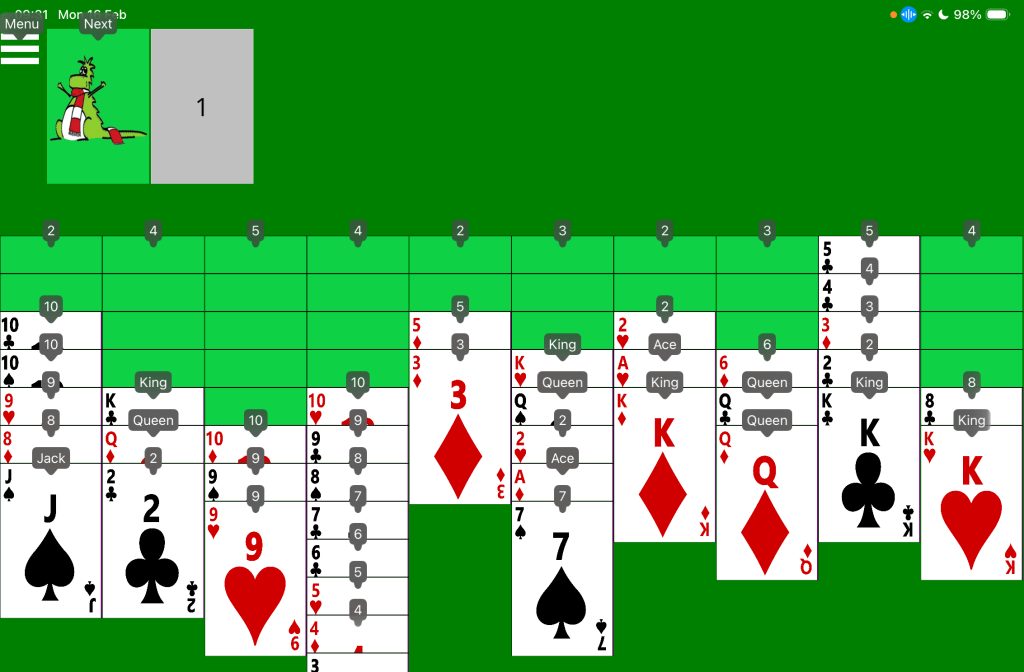
Note: Given that two packs of playing cards are used in the Spider Solitaire game, often the same named card can appear in two places at the same time. For example, there may be two 4 of Diamonds cards which can be clicked. So when you say: “Tap four of diamonds”, the voice control feature might not know which 4 of Diamonds you want to click. In that case, a small number 1 or 2 will appear beside each of the 4 of Diamonds cards. You then say either “one” or “two” to specify which of the two cards you want to click.
The picture below shows an in-progress game of Accessible Spider Solitaire on an iOS device. The iOS Voice Control feature is showing a small number or name beside all clickable parts of the game. For example, “Menu”, “Next”, “2”, “10”, and “Jack”.
Switch input
On devices supporting switch devices such as an iPad mini, the Spider Solitaire game can be controlled using a switch device in a similar way to the existing Klondike solitaire game.
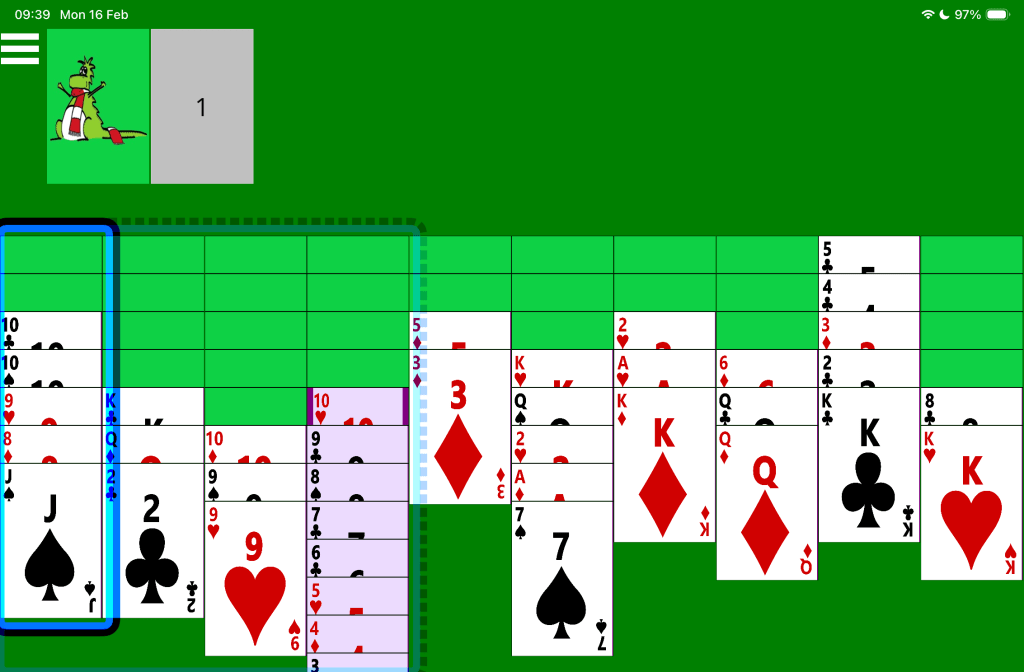
The picture below shows an in-progress game of Accessible Spider Solitaire on an iOS device. The iOS Switch Control feature is showing a translucent dotted blue box around the first four dealt card piles, and a solid blue box around the first dealt card pile.
 Accessible Solitaire
Leave a comment