To review some of the known issues in the Accessible Solitaire app, please visit: https://accessiblesolitaire.com/2026/02/18/accessible-solitaire-known-issues.
Version 3 of the Accessible Solitaire app includes the Pyramid Solitaire version of the game. To switch between the Klondike version and Pyramid version, go to the app menu and select the desired version of the game.
Important: Please note that the Pyramid version of the game is a work in progress. The game is playable today, but will be constantly improved based on feedback from players. If you have suggestions on how the game can be made more playable and more enjoyable, please do send feedback to gbarkerz@hotmail.com. Thank you!
Tip: Today the pyramid of cards shown in the game occupies most of the screen, regardless of the size of the screen. This can result in each card being thinner and taller than expected. As such, it is recommended that the game is played with the screen rotated to be in a landscape orientation.
Note: Today there’s nothing explicitly labelled “Klondike” or “Pyramid” on the screen once a game has been started. One way to quickly verify which type of Solitaire is being played is to check whether a “Waste pile” follows the Next Card button near the top left of the screen.
Playing the Pyramid Solitaire game
When the game starts, 28 cards are laid out to form a pyramid, with one card in the first row down to seven cards in the bottom row. Initially all card in rows 1 to 6 are partially covered by two cards in the next row. The remaining 24 cards are in a pile which lie face down below a Next Card button near to the top left corner of the app.
When the Next Card button is clicked, the top card in the remaining pile is turned up, and becomes the upturned card to the right of the Next Card button. Whenever the Next Card button is clicked, if there is already an upturned card, that upturned card is moved to the top of the waste Pile, which lies between the Next Card button and the upturned card.
The goal of the game is to discard all the cards in the pyramid. A card in the pyramid can only be discarded if it is not partially covered by any other cards.
Cards can be discarded from the game in the following ways.
- Select a card in the pyramid, or the upturned card, or the card at the top of the waste pile, when that card is a King. Note that the values of the Ace, Jack, Queen, and King cards are 1, 11, 12, and 13 respectively.
- Select two cards in the pyramid and the total value of the two cards is 13.
- Select both the upturned card and the card at top of the waste pile, when the total value of the two cards is 13.
When a card is discarded from the pyramid, keyboard focus moves to the previous card in the pyramid.
Note: A future version of the game will include an option to say that the game is only won once all the cards in the pyramid have been discarded, and also all the other cards have been discarded.
Note: Currently no game settings have been added to the Accessible Solitaire app which are specific to the Pyramid version of the game, but some of the existing settings apply to both the Klondike version and Pyramid version.
Note: If the app settings related to the colours of the suits shown on the cards, or the timeout for the zooming of the card, are changed, the app needs to be restarted before the changes take effect.
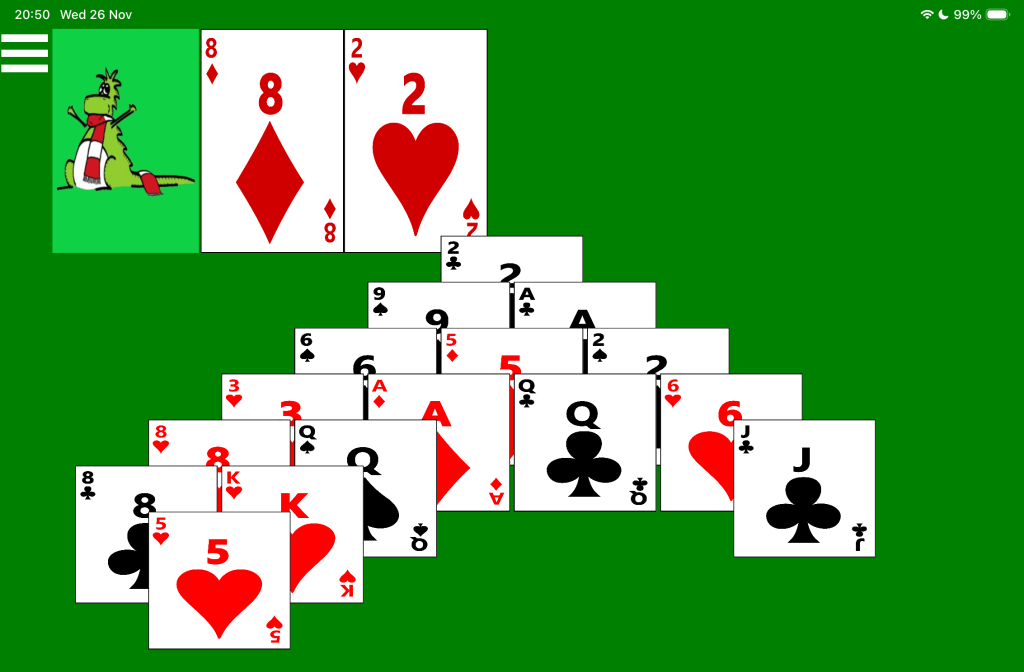
The following image shows in-progress game of Pyramid Solitaire, with multiple cards from the lower rows having been discarded. The upturned 2 of Hearts is shown next to the 8 of Diamonds on top of the waste pile.
The following image shows a game of Pyramid Solitaire having been won. No cards are shown in the pyramid, the remaining cards are spinning, and a popup window says: “Congratulations, you’ve won! Would you like to start a new game?”

Keyboard usage (Windows only)
A press of Tab of Shift Tab will move keyboard focus to the next or previous element in the game, including adjacent cards in the pyramid. A press of Left or Right Arrow will perform the same navigation in many places in the game. If keyboard focus is on a card in the pyramid, a press of the Up or Down Arrow will move keyboard focus to the first card on the preceding of following row in the pyramid.
Important: There are many more efficiencies that could be added to the keyboard experience. For example, use of Home and End, or a keyboard shortcut that moves keyboard focus to a card that can be discarded. Feedback from players will help prioritise improvements in this rea.
Voice Control usage (iOS only)
To select a card, say “Tap” followed by the name of the card to be selected. For example, “Tap 3 of diamonds”. To turn over the next card in the remaining cards pile, say “Tap next card”. Once there are no more cards shown in that remaining card pile, say “Tap turn over cards” to have all the upturned cards turned back over.
Using a Screen Reader
A screen reader announces the name of whatever it encounters in the game. These announcements include the following:
- “Menu, Button”
- “Next card, Button”
- “Waste pile, no card, Button”
- “7 of Hearts on waste pile”
- “No upturned card, Button”
- “6 of Diamonds upturned”
For cards in the pyramid, announcements are of the form:
- “King of Spades, row 4, 2 of 4”
- “8 of Clubs, Open, row 7, 6 of 7”
If the announcement of a card in the pyramid includes the word “Open”, then the card is not partially covered by any other cards, and so the card can be selected. If a card has been selected in preparation for it being discarded, the screen reader will announce the card as being selected.
The screen reader can be moved directly to an element in the game by touching the element, or by swiping right or left to have the screen reader move to the next or previous element respectively.
Note: When the cards in the pyramid are first laid out, there is a slight gap between the cards in a row. This means as you move your finger along the cards in a row, the name of the cards on another row showing slightly through the gap will also briefly be spoken.
Note: To have the first card in each row be a heading, turn on the Headings setting in the Settings page. Once the first card on each row is a heading, if the screen reader is located at a card in the pyramid, the screen reader’s heading navigation can be used to quickly move to the first card in the preceding or following row.
The screen reader also announces details in response to some specific actions that are taken in the game. For example:
- After clicking the Next Button and a card is turned up: “9 of Diamonds on top”.
- When selecting a card: “3 of Clubs, selected”.
- After clicking a King in the pyramid: “Discarded King of Hearts”.
- After selecting a pair of cards in the pyramid: “Discarded 6 of Clubs and 7 of Hearts”.
- After selecting a card in the pyramid and the upturned card: “Discardws 4 of Spades upturned and 9 of Clubs”.
When a card in the pyramid of cards is discarded, if VoiceOver was located at that card, then VoiceOver will move to the card to the left of the discarded card.
Important: When a move involves discarding one or more cards from the pyramid of cards, there is a two second delay before VoiceOver’s announcement confirming that the cards were discarded. During this delay, an announcement relating to VoiceOver moving to another card may have begun and if so, will get interrupted.
Important: When swiping left or right while iOS VoiceOver is at a card in the pyramid, VoiceOver will move to an adjacent card in the row. However, when using Android TalkBack, TalkBack takes a diagonal path through the pyramid. This is a confusing path, and I’m searching for a robust solution to this.
Announcing the entire state of the game: To have the current state of the entire game announced by the screen reader, go to the Settings page and check: “Show screen reader buttons”. When you then return to the game, a button called: “Game state” will follow the Menu button near the top-left of the game. When that button is tapped, the screen reader will announce the current state of the upturned cards, the target card piles, and the dealt card piles. For example:
“Upturned card is 5 of Clubs, Top of waste pile is Ace of Spades. More cards are available to turn over. Row 5, 9 of Hearts, Row 4, 10 of Clubs, Row 3, 10 of Diamonds, Queen of Spades, Row 2, 2 of Hearts, 3 of Hearts, Row 1, 4 of Hearts”
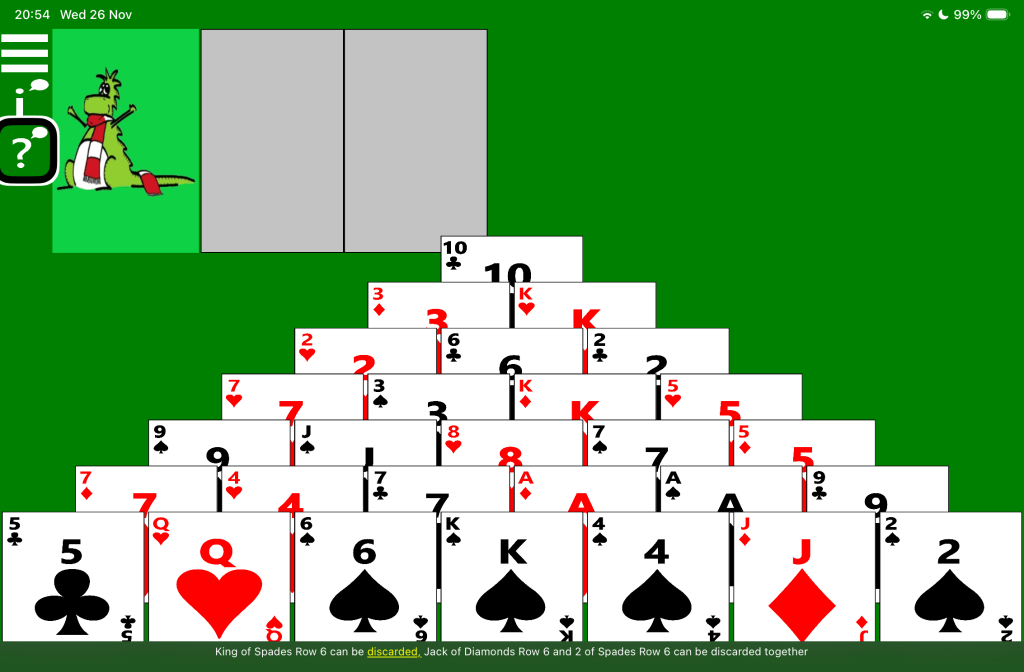
The optional screen reader buttons also include the “Available moves” button, which will have the screen reader announce any moves that are currently available in the game. For example: “2 of Hearts Row 6 and Jack of Diamonds Row 6 can be discarded together, 2 of Diamonds Row 6 and Jack of Diamonds Row 6 can be discarded together, King of Spades Row 6 can be discarded”.
Note: The announcements relating to available moves only involves those moves which involve a card in the pyramid of cards. So moves which only involve the upturned card and the card at the top of the waste pile will not be announced.
Tip: For a more efficient game-playing experience, turn on the screen reader Automatic announcements setting. This will result in the screen reader announcing all available moves after some action is completed in the game, if any such moves are available.
Tip: When using the iOS VoiceOver screen reader, turn off the VoiceOver “Text Recognition” setting to prevent VoiceOver attempting to recognise any text shown on the cards and announcing that text in addition to the name of the card.
Tip: When using the iOS VoiceOver screen reader, turn on the VoiceOver “Switch Dynamic Areas and Announcements” feature.
The following image shows a new game of Pyramid Solitaire. The Voice Over screen reader is highlighting the “Available moves” button, and its caption shows: “King of Spades Row 6 can be discarded, Jack of Diamonds Row 6 and 2 of Spades Row 6 can be discarded together”.
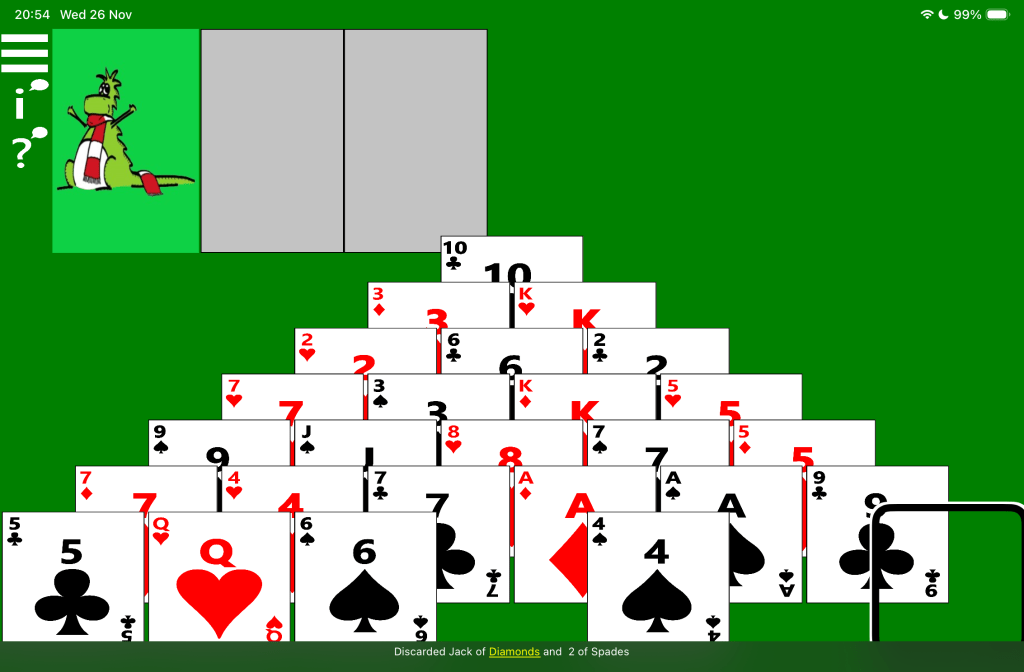
The following image shows an in-progress game of Pyramid Solitaire. The Voice Over screen reader is highlighting the position of a newly-discarded card, and its caption shows: “Discarded Jack of Diamonds and 2 of Spades”.
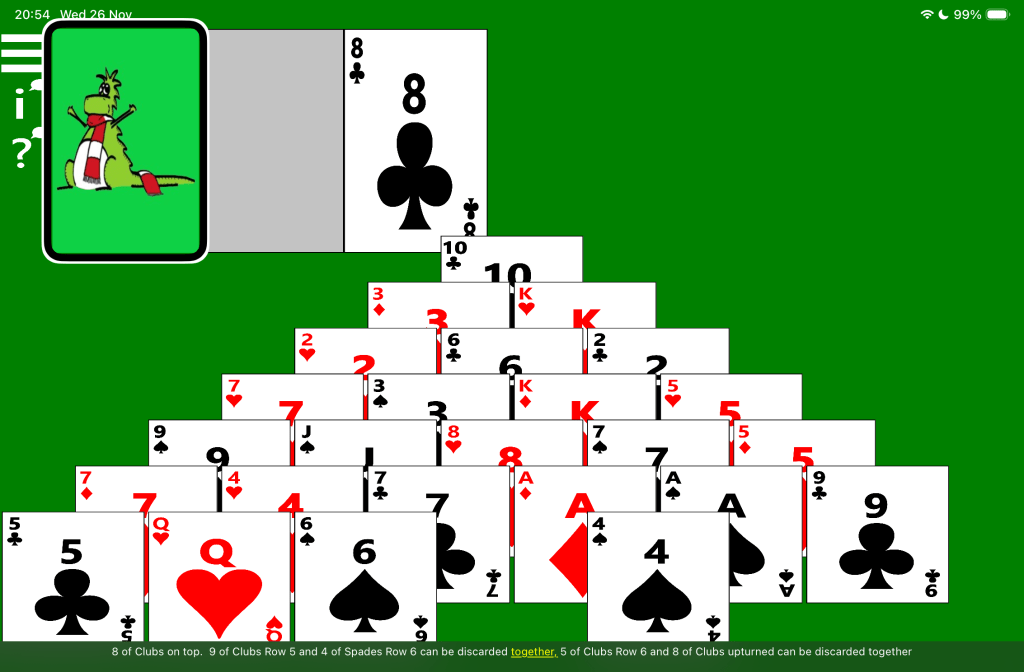
The following image shows an in-progress game of Pyramid Solitaire. The Voice Over screen reader is highlighting the Next Card button, and its caption shows: “8 of Clubs on top. 9 of Clubs Row 5 and 4 of Spades Row 6 can be discarded together, 5 of Clubs Row 6 and 8 of Clubs upturned card can be discarded together”.
 Accessible Solitaire
Leave a comment